In part 1 we set up the Protection and Recovery service, its replication proxies, and the replication classes for the organization. This post covers the next step: pairing namespaces in the two regions, mapping their networks, and protecting a virtual machine. It also covers recovering that VM and reprotecting it afterwards.
Scope: Multi-Tenant Disaster Recovery in VCF Automation
This series covers Multi-Tenant Disaster Recovery and Protection for VCF Automation, for VM Service VMs that run on a Supervisor. Only vSphere Replication is supported for these VMs, and it is provided through Protection and Recovery. Several vSphere Replication and Site Recovery Manager (SRM) features are not supported for Supervisor-managed VMs, so do not assume they work here.
Do not add these VMs to SRM protection groups
You must not add VCF Automation-protected Supervisor VMs directly to SRM protection groups. VMs that Protection and Recovery for VCF Automation manages must have their replication and recovery handled entirely through the VCF Automation interface and its underlying VirtualMachineReplication CRDs.
- If a VM managed by VCF Automation is added to an SRM protection group, the VM enters an inconsistent state, often showing the status “Placeholder VM not found.”
- Recovery from the VCF Automation UI then fails with the error “Cannot initiate a simple recovery because the replication is tagged with external recovery solution label ‘Site Recovery Manager’.”
- Test recoveries in SRM fail with vcenter.wcp.workload.notfound.
- To fix the conflict, remove the VM from the SRM protection group and recover it only through the VCF Automation Protection and Recovery workflows.
VMware Live Site Recovery / Site Recovery Manager (SRM) in VCF 9.x does support Supervisor VM Service-managed VMs, but the protection method you choose is mutually exclusive:
You can protect VM Service VMs either directly through Site Recovery Manager (SRM) or through Protection and Recovery for VCF Automation, BUT NOT BOTH AT THE SAME TIME.
Key takeaway
| Aspect | Protection and Recovery for VCF Automation | Site Recovery Manager (SRM / Live Site Recovery) |
|---|---|---|
| UI / control plane | VCF Automation console and VCF CLI (kubectl) | vSphere Client and Site Recovery UI |
| Protection mechanism | Paired namespaces and VirtualMachineReplication CRDs | vSphere Replication protection groups and recovery plans |
| Use case | Multi-tenant, self-service DR within VCF Automation projects | Centralized VI admin DR orchestration across vCenters, without VCF Automation tenancy |
The lab
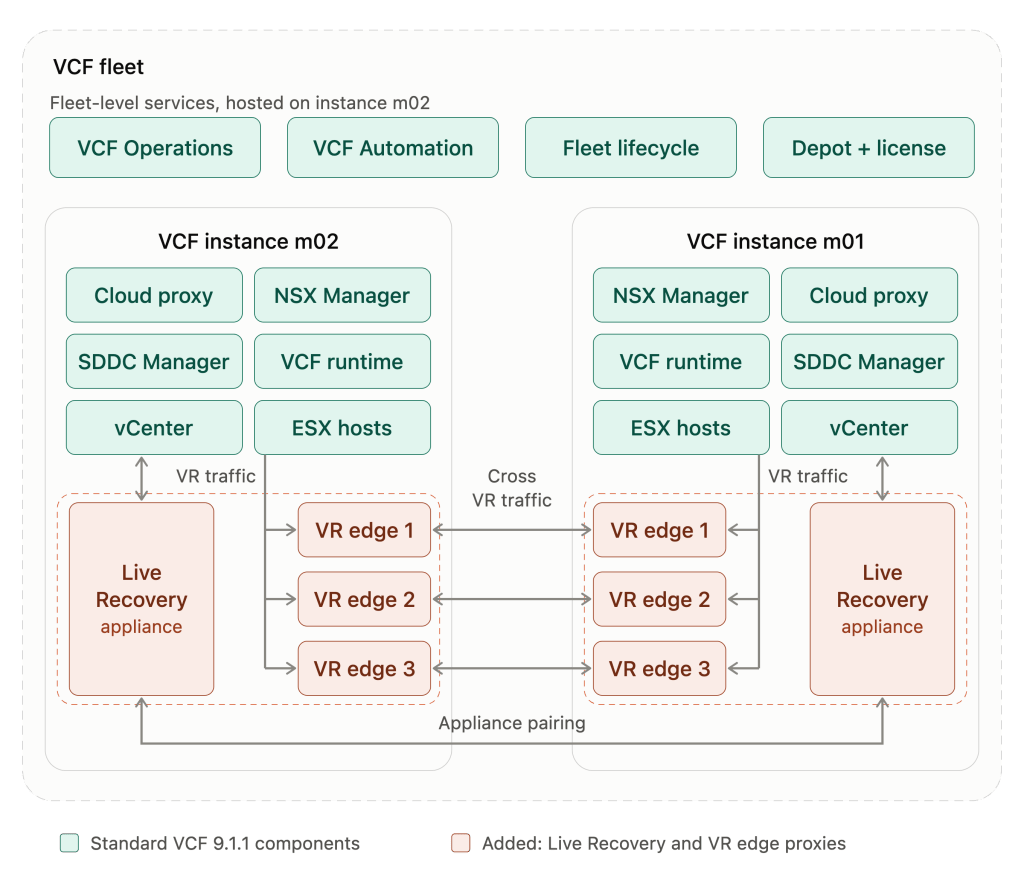
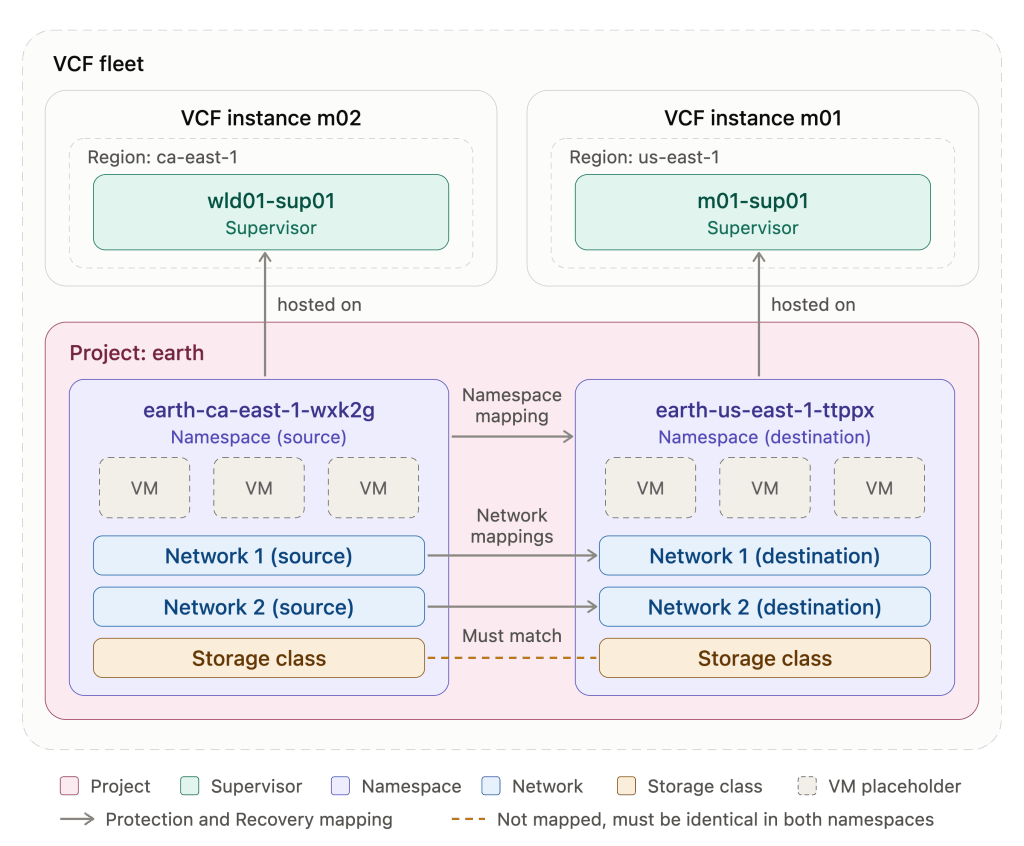
The examples in this post use the earth project in the Planets organization, an All Apps organization in my lab. The earth project has one supervisor namespace in each of two regions. Region ca-east-1 is VCF instance m02 with workload domain m02-w01. Region us-east-1 is the consolidated VCF instance m01. The namespace in ca-east-1 is paired with the namespace in us-east-1.
Pair the namespaces
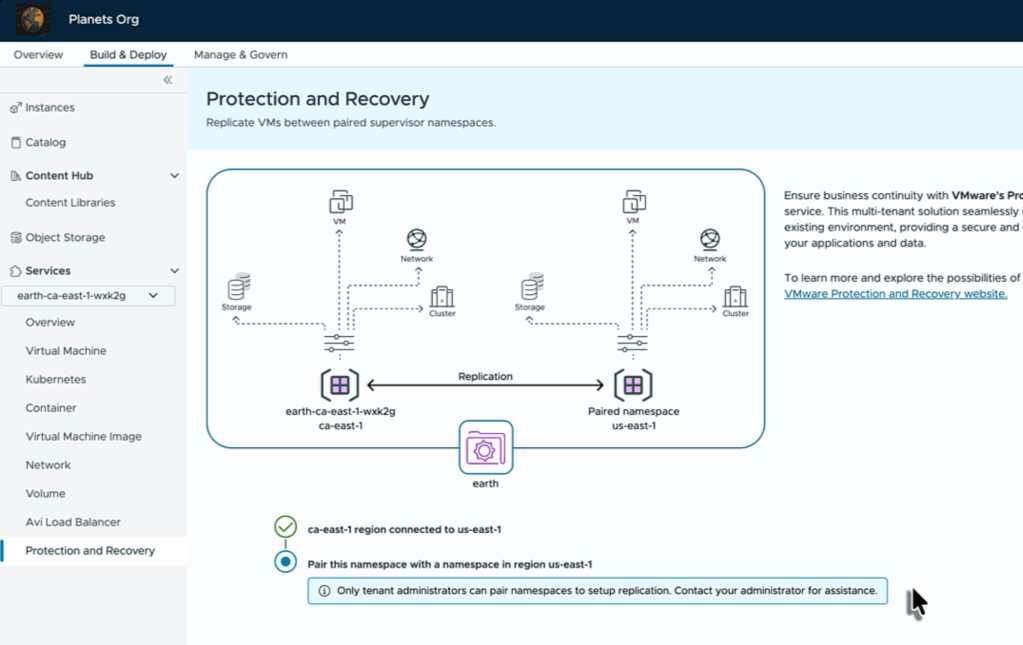
Before you pair namespaces, check the roles, because not every user can use the service. Only a tenant administrator, the Organization Administrator, can create pairings. Advanced users have access to the IaaS features, so they can work with namespaces, VMs, and protection. Normal users can only access the catalog, so they can deploy catalog items but cannot pair namespaces or protect VMs.
Pairing is done from the namespace, not from the provider tenant. In the VCF Automation console, open the Build and Deploy tab, select a namespace under Services, and then select Protection and Recovery in the left navigation. Click Pair Namespace.
If you are not the tenant admin, you will see a message preventing the pairing, as in the example below. I was logged in as an advanced user.
Now, log in as a tenant admin to create the pairings. Select your namespace, then Protection and Recovery, and click Pair Namespace.
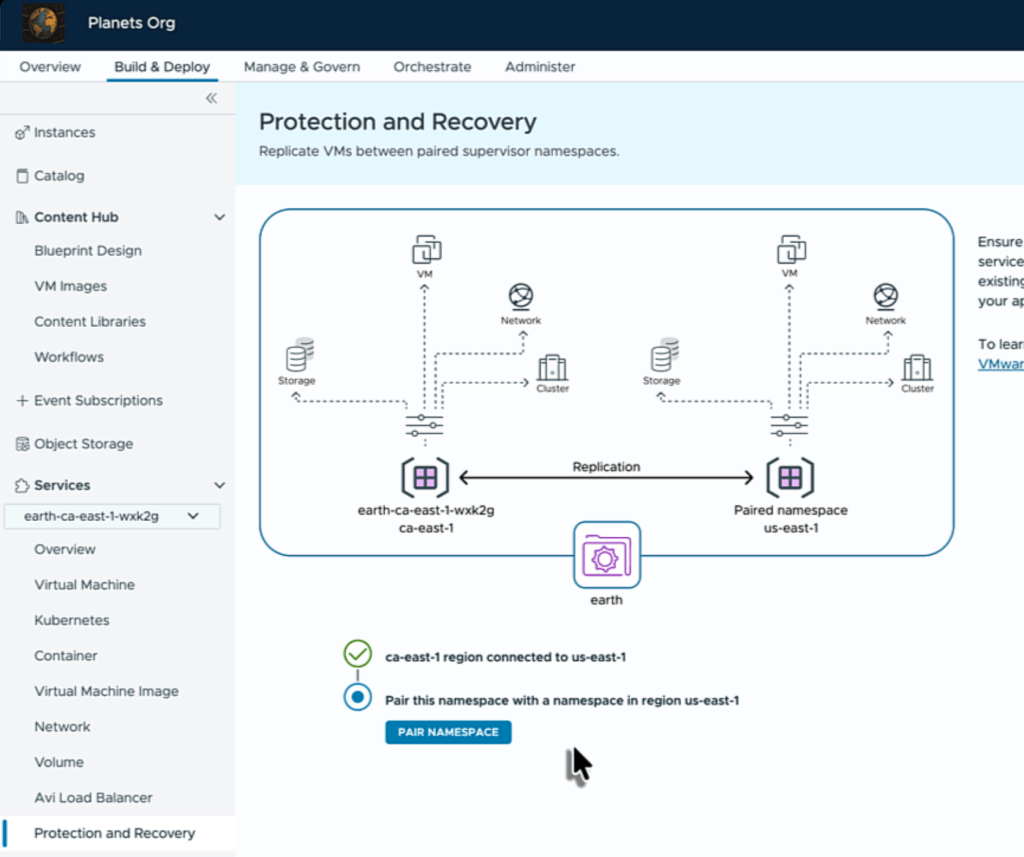
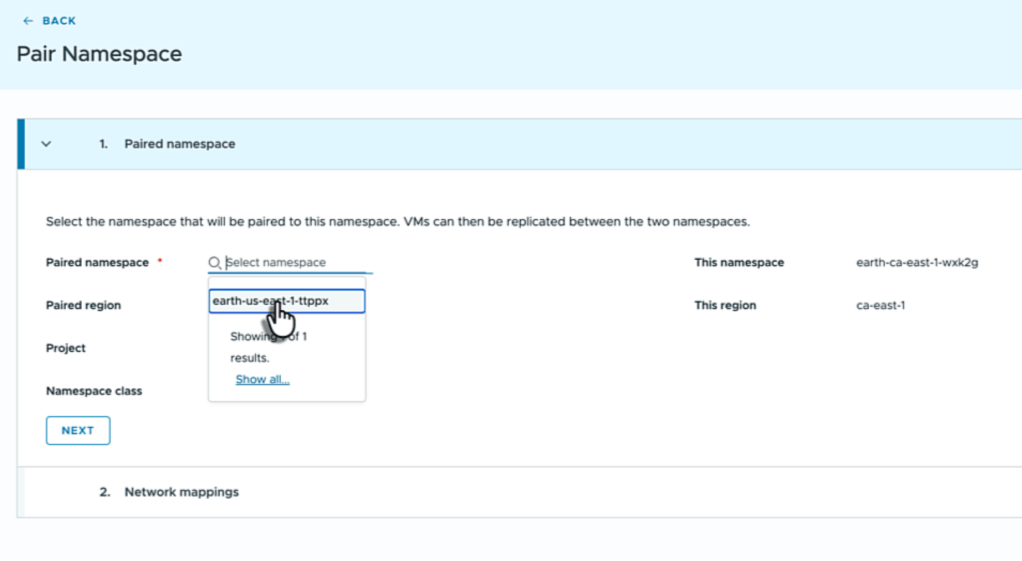
- On the first page, select the other namespace you want to replicate to. The page shows the namespace you are in and the other namespaces in the project. Click Next to go to the network mappings.
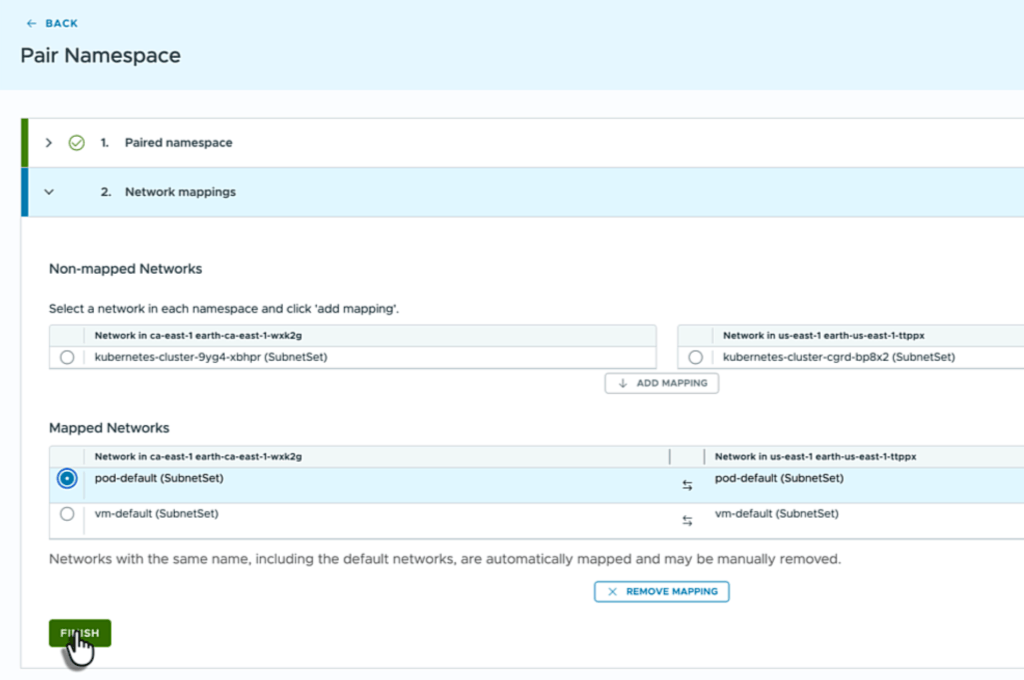
- On the Network Mappings page, map each network in the current namespace to the corresponding network in the paired namespace. Keep in mind that networks that have the same name will automatically be mapped.
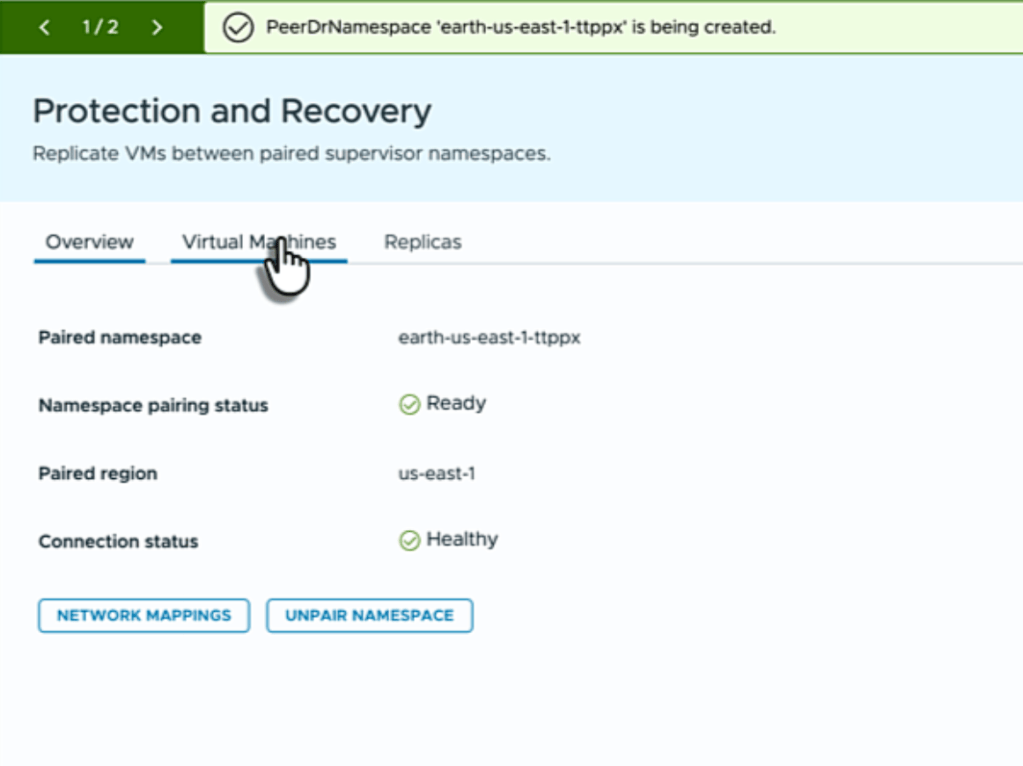
- Click Finish. The Protection and Recovery page and the pairing summary then show the configuration.
More details on mappings
Mapping the networks
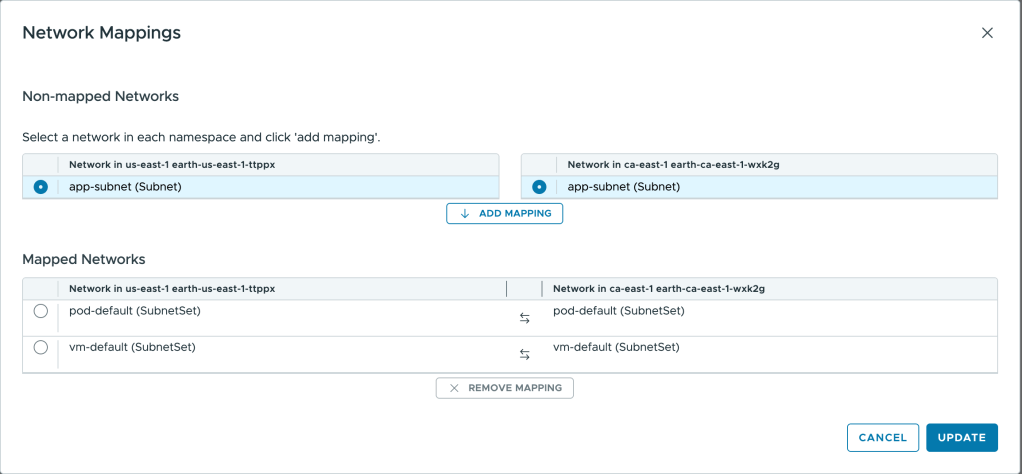
Network mapping connects each network in the protected namespace to a network in the recovery namespace. The Organization Administrator can change the mappings later from the Protection and Recovery page, using Network Mappings.
Mapped networks are not required to use the same CIDR or the same L2 network in both regions. The VPCs in the earth project in my lab both use the private range 172.30.0.0/16 in this example.
I later added dedicated app subnets to the mappings
What about storage and vm classes?
When protecting and recovering VM Service virtual machines between paired namespaces in VCF Automation, the recovery VM is created from the source virtual machine custom resource (VirtualMachine CR). Because of how the Supervisor control plane and VM Operator validate resources, both the storage class and the VM class must match in the paired namespaces.
As you can see in the last example, the storage class is not mapped (the UI does not ask for it), but it must be identical in both namespaces. Both regions need a storage class with the same name. In my lab, both namespaces in the earth project use the nvme-gold01 storage class. The same applies for the vm-class.
Storage Classes Requirement
- Must be identical: Both the source and recovery regions and their paired namespaces must have storage classes configured with the same display name and Kubernetes-compliant name.
- Why this is required:
During replication and failover, the vSphere Replication Management Server and VM Operator recreate the VM disk configuration at the target site using the storage policy defined on the source VM.
If the target namespace lacks the matching storage class, the target admission webhook rejects the reservation. Attempting to protect the VM results in the VM getting stuck indefinitely in a Configuring state with the error: > admission webhook "validate-quota-on-storagepolicyreservation.k8s.io" denied the request: Operation denied, StorageClass.storage.k8s.io "<storage_class_of_source_VM>" not found; code: 500
VM Classes Requirement
- Must be identical and bound to both namespaces: The target namespace must have the exact same VM class name bound to it as used by the protected VM in the source namespace.
- Consistency across regions: In VCF Automation, VM classes configured across paired regions must:
Exist on all vCenter / Supervisor instances.
Have identical names.
Maintain consistent hardware configurations (CPU, memory, and reservations).
Be allocated within the organization’s Region Quota and associated/bound to the respective paired namespaces.
- Why this is required:
The recovered VM specification references the source className directly. If the target namespace does not have that exact VM class available or associated, the Supervisor Kubernetes API cannot validate or instantiate the recovered VirtualMachine resource at the DR site.
Protect a VM
Protection is done by a Project Administrator or Project Advanced User, in the VCF Automation organization UI. Under the protected namespace, select Protection and Recovery. Create the VM you want to protect in that namespace, or choose an existing one, and then configure replication for it.
Let’s create a VM and protect it.
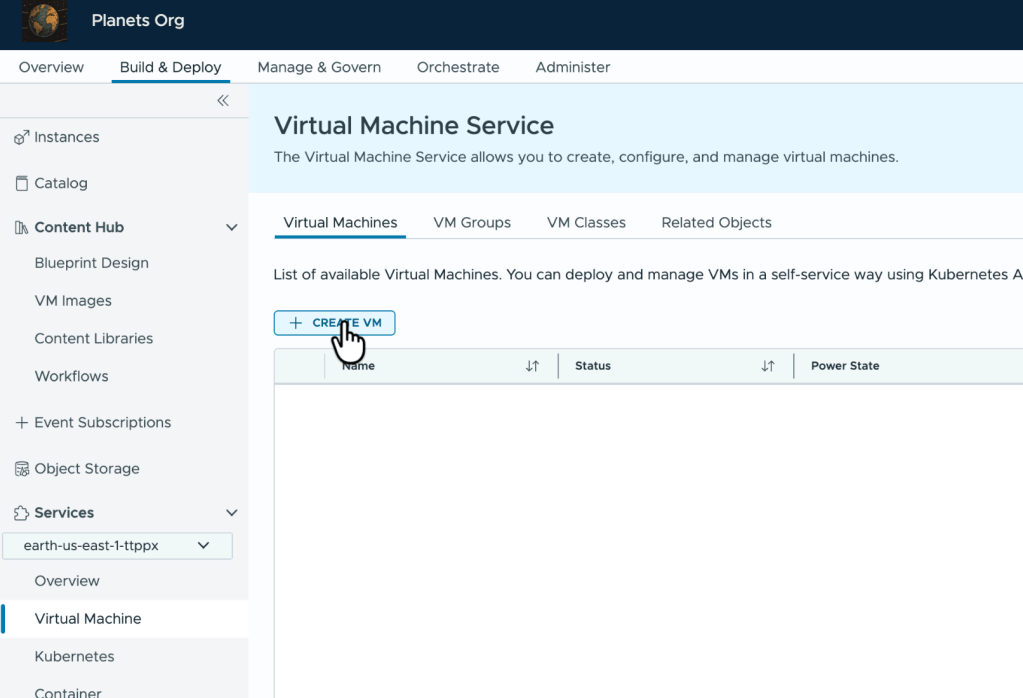
Create the VM like you normally would, but notice the new Protection and Recovery options
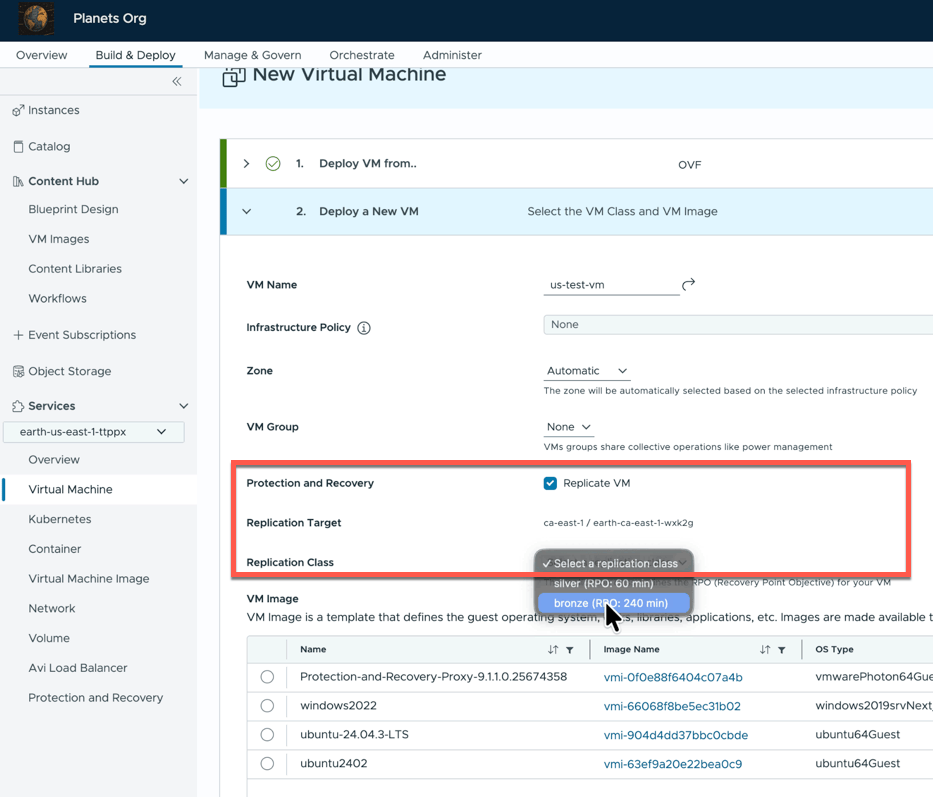
- Select the Replicate VM checkbox.
- Validate the Replication Target (read-only).
- Choose the replication class for the VM. The classes are the ones the provider assigned to the organization in part 1: Platinum (1 minute), Gold (5 minutes), Silver (1 hour), or Bronze (4 hours).
- Choose the rest of your options as you would for a normal VM (image, VM class, storage class, network, and so on). Don’t forget that the storage class and VM class must exist with the same name in both namespaces.
- Deploy the VM.
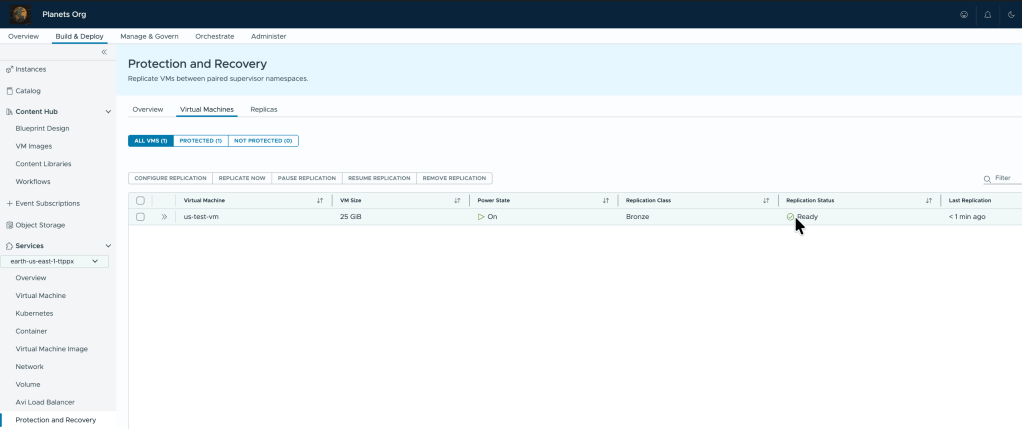
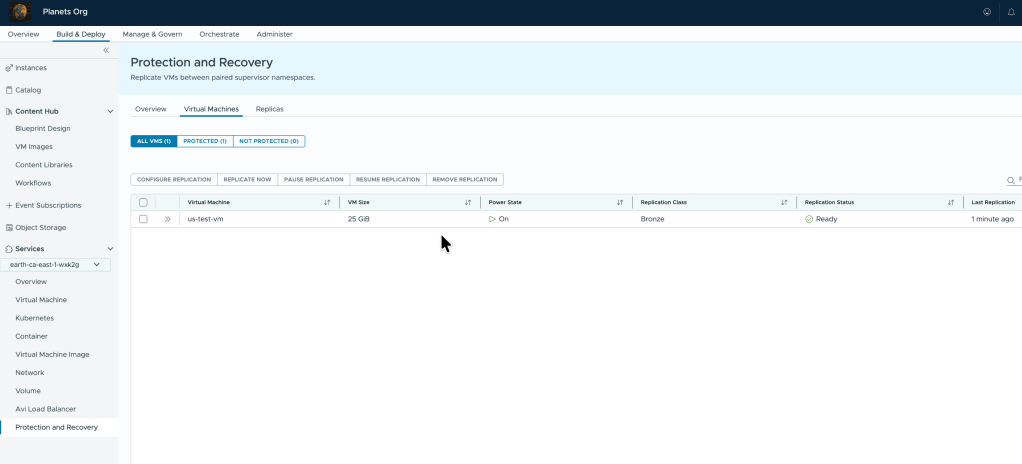
Once the VM is deployed, go back to the Protection and Recovery tab / Virtual Machines. You should have 1 protected VM
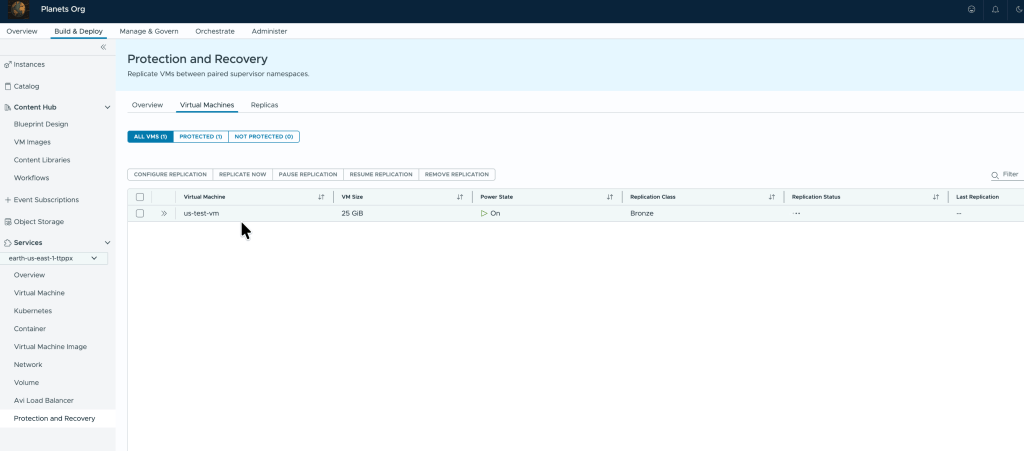
The replication status will not be available until the first sync is complete. Don’t panic.
You can validate that the configuration has been applied to the VM by logging into the Replication Appliance (either instance) and checking that the replication has been configured and is ongoing. See below. The initial replication was in progress.
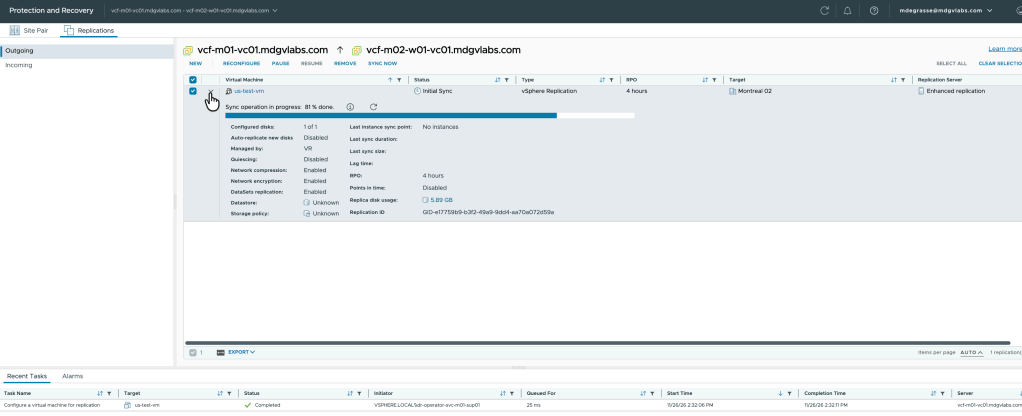
When replication is complete, the status is updated in VCF Automation.
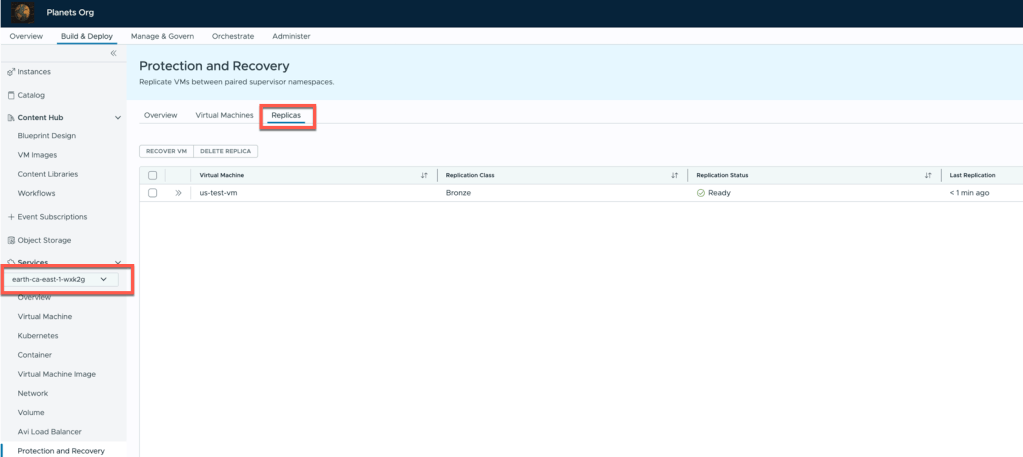
Now, if we switch to the recovery namespace, we should be able to see the replica. At this point, this VM does not show up in the destination vCenter yet. The VM has to be recovered to be registered in the recovery vCenter.
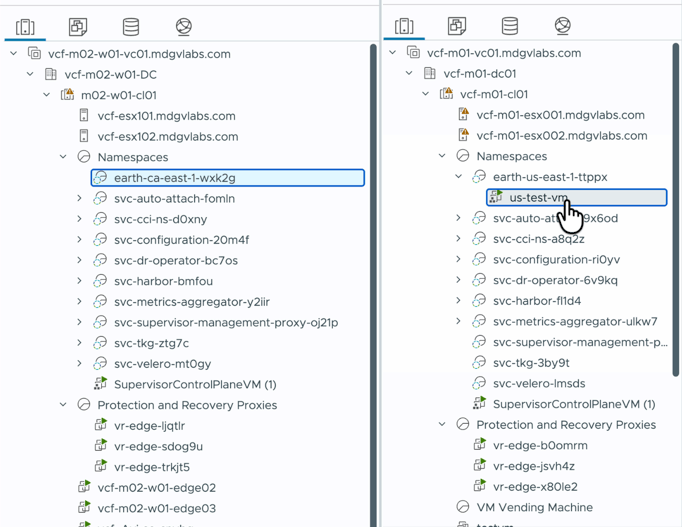
I’ve combined a view of both the recovery and protected vCenters so you can see where the VMs land. The recovery vCenter doesn’t have the VM in its inventory yet. It will once the VM is recovered.
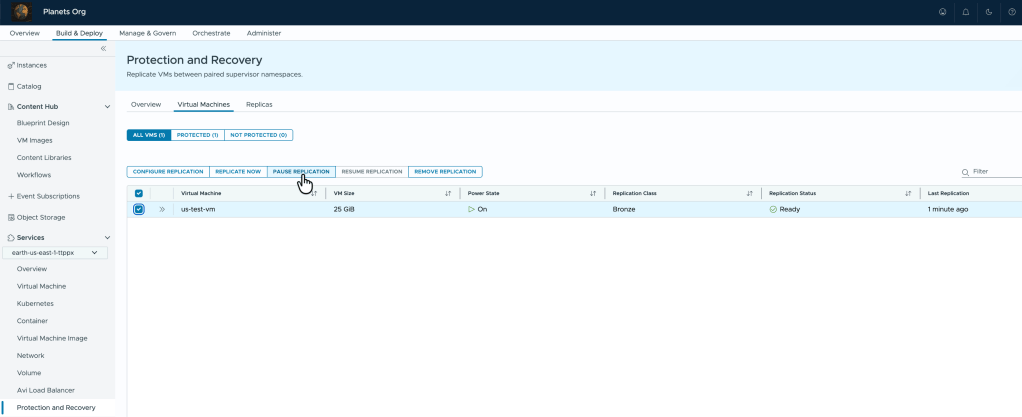
Once replication is configured, from the source namespace you can remove the replication, pause it, force a full sync, and so on.
Recover and reprotect
You recover the VM in the paired namespace in the other region. The replicas in that namespace are what you recover from. After recovery, reprotect the VM so that replication runs again in the opposite direction.
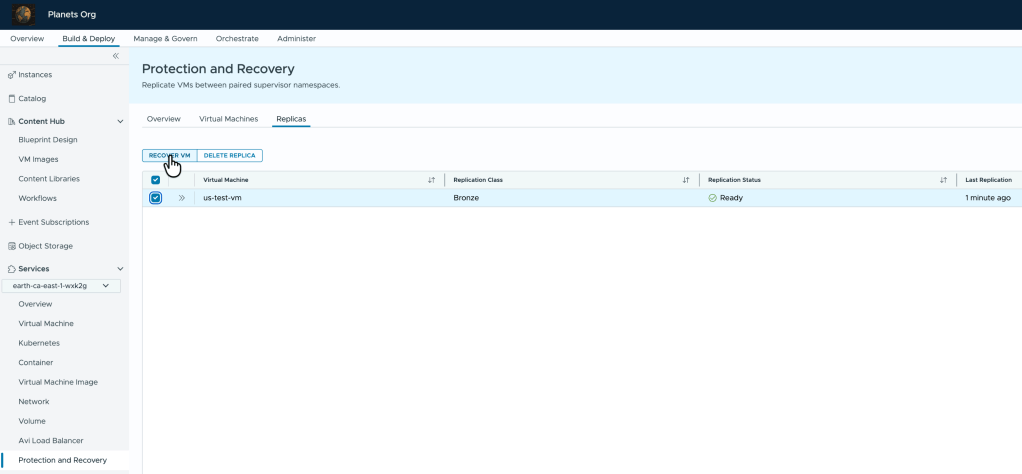
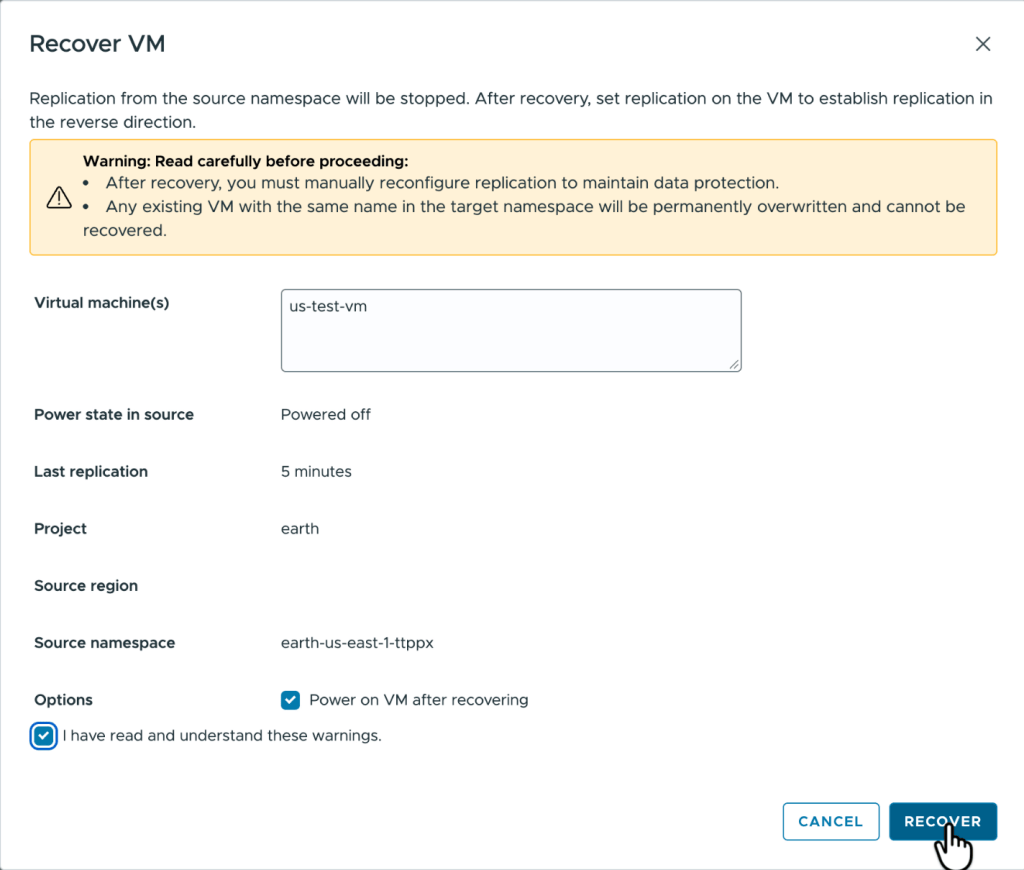
Click Recover VM to start the recovery. You will not be able to recover if the source VM is powered on. You can recover multiple VMs at the same time by selecting more than one. Select whether you want to power on the VM after recovery, acknowledge the warnings, and press Recover.
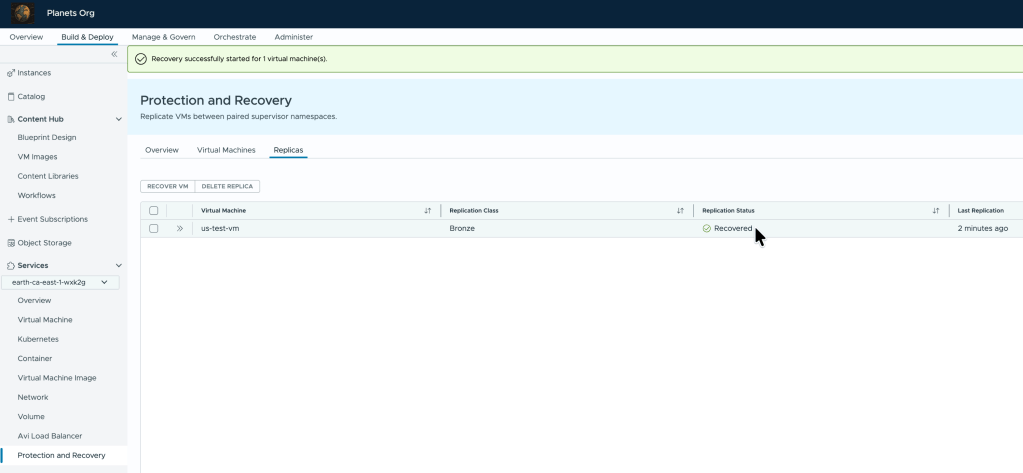
The recovery process will start and the replication status will update
The protected VM will be off in the protected site and namespace.
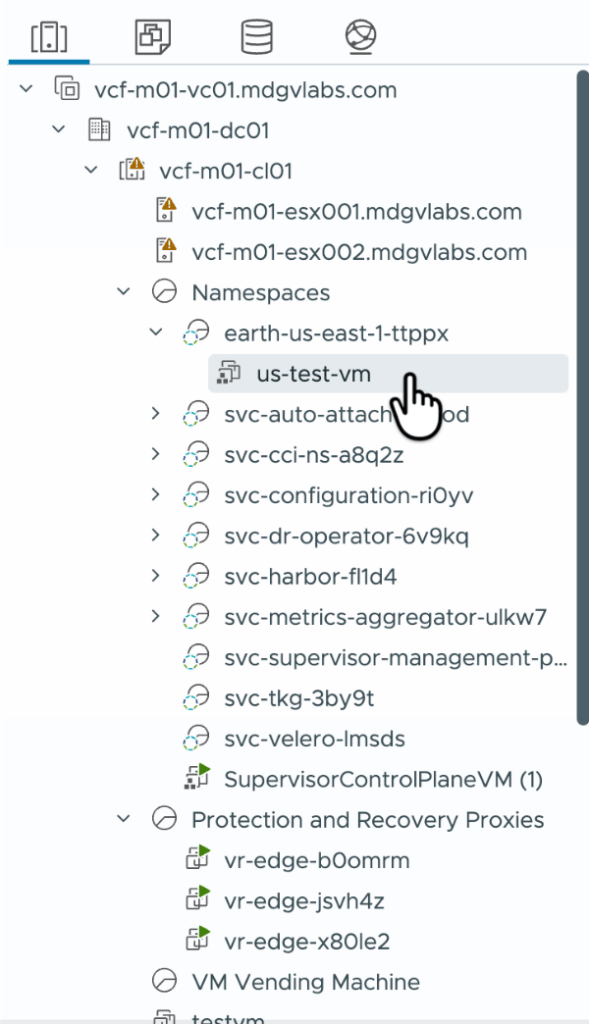
And after a couple of seconds, you should see the recovered VM on the recovery site/namespace powered on.
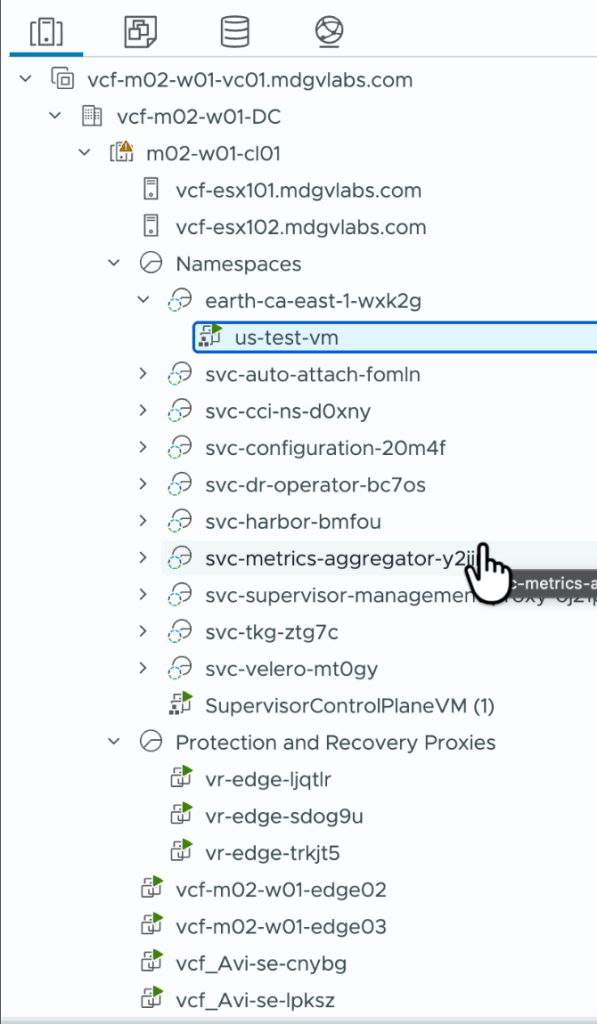
Now the VM is active in the recovery site, but not protected. If you want to protect it and reverse the replication, select the recovery namespace Protection and Recovery tab and you will see your VM with its status of Recovered (but not protected).
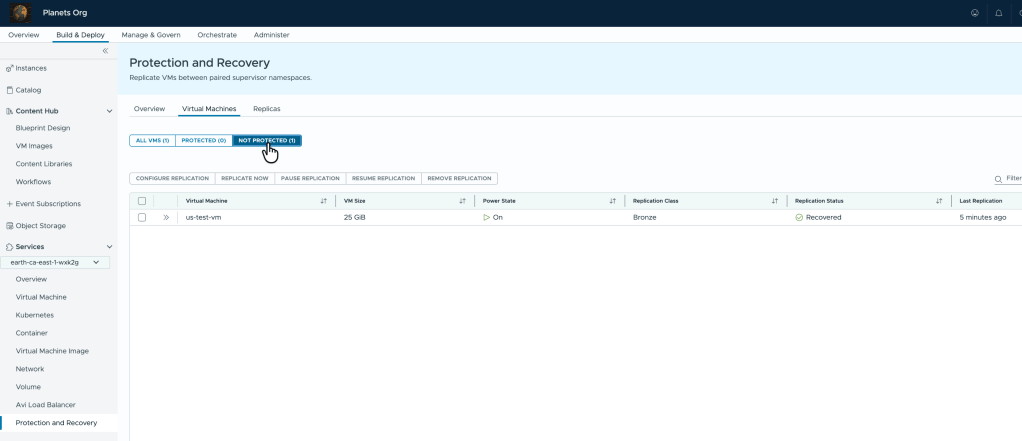
To reprotect the VM, select the VM(s) and click Configure Replication
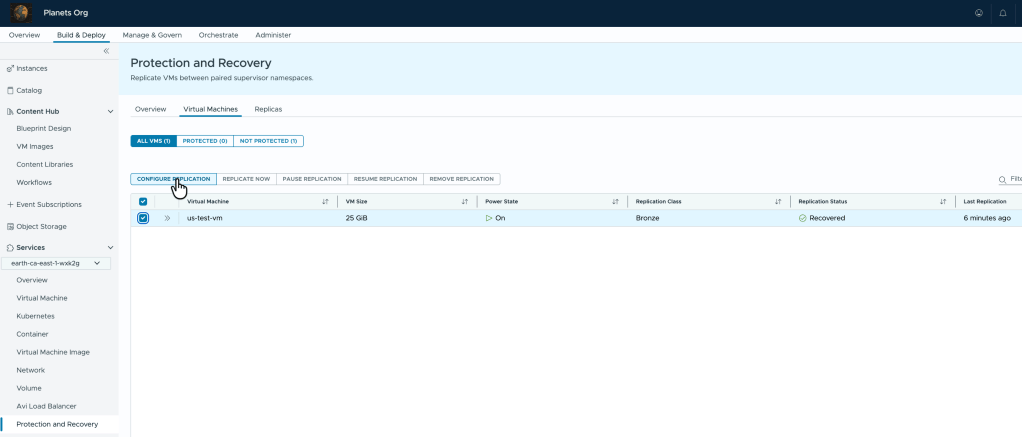
Select the replication class and note the warnings. The original VM obviously has to be powered off, but since it’s already in the protected namespace, only the delta will be replicated. Select Save to reprotect.
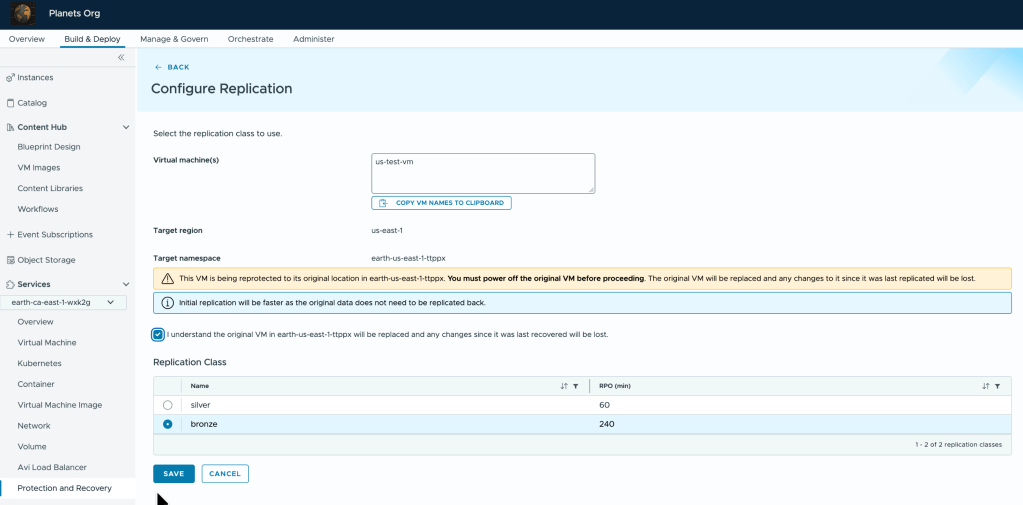
The replication status will change to Not Active during the replication and return to Ready when the sync is complete
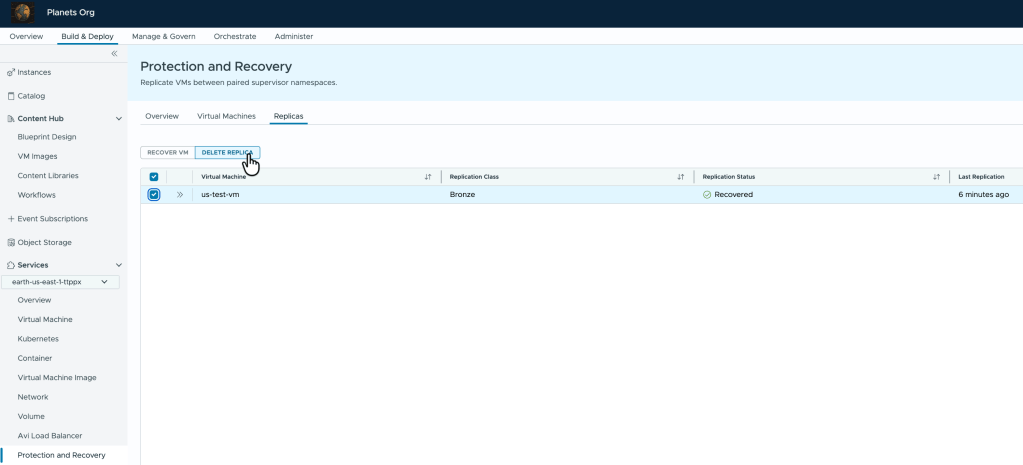
At any time, you can delete the replicas. They do not get removed automatically. To remove a replica, select the namespace where the VM was replicated, click Replicas to see all replicas, select the VM replica to delete, and click Delete Replica.
Summary
This post covered how to pair namespaces, map their networks, and protect, recover, and reprotect a VM with Protection and Recovery in VCF Automation. Pairing and network mapping are the organization-level setup. Once that is in place, a Project Administrator or Advanced User can protect a VM with a replication class, then recover and reprotect it when needed. The constraints matter too: a protected VM is managed only from VCF Automation, the storage class and VM class must match in both namespaces, and several SRM features are not supported for Supervisor VMs.
Using Protection and Recovery with VCF Automation gives you these benefits:
- Self-service recovery: project users protect, recover, and reprotect their own VMs from the VCF Automation UI, without needing a vSphere administrator to run the recovery.
- Multi-tenant isolation: each organization and project has its own namespace pairs, network mappings, and replication classes, so tenants stay separate.
- Policy-based RPO: the provider offers replication classes from Platinum (1 minute) to Bronze (4 hours), and each workload gets the one that fits its needs.
- Declarative protection: replication is defined on the VM through VirtualMachineReplication CRDs, so it stays with the workload definition instead of in a separate runbook.
- Built on vSphere Replication: protection uses vSphere Replication, which is included in VCF, so there’s no separate replication product to deploy.
- Ready for failback: reprotecting after a recovery is part of the same workflow, so the VM can be protected again in the opposite direction.




Leave a Reply