This post assumes vSphere Replication is already configured on the vCenter Servers in the regions you want to pair. Setting up vSphere Replication itself is outside the scope of this post.
vSphere Replication has been protecting virtual machines for years. You can use it directly through vCenter and the vSphere Replication console, or through integrations with classic VCF Automation. Virtual machines provisioned by the VM Service in All Apps organizations are different, and they are protected differently. The Protection and Recovery service, which integrates with vSphere Replication, is required to protect VMs deployed with VM Service under VCF Automation. This is part 1 of the series. It covers the setup in VCF Automation, and the next post covers protecting and recovering workloads.
First a couple of definitions , VM Service vs VM Operator. These terms sometimes are used interchangeably but have different meanings.
VM Service (Virtual Machine Service)
- What it is: The official architectural feature/service in Supervisor.
- Role: Enables platform administrators and DevOps engineers to deploy and manage both standalone virtual machines and the VMs that compose VMware Kubernetes Service (VKS) clusters.
VM Operator (vm-operator)
- What it is: The underlying Kubernetes operator/controller running inside the Supervisor control plane.
- Role: VM Operator is the engine behind VM Service. It reconciles VM Custom Resources (under the
vmoperator.vmware.comAPI group) and translates declarative Kubernetes manifests into actions executed by vCenter Server and ESXi to instantiate, power on, and manage the VM lifecycle.
Where All Apps fits
VCF Automation has two kinds of tenant organization. VM apps and All Apps. All Apps organizations are for workload domains that run VM Service VMs alongside containers and other services. Each organization gets its own vSphere Namespaces, Projects, VPCs, and Transit Gateways. That isolation carries through to disaster recovery. Organization users can use the self serve features of VCF Automation to protect and recover their virtual machines as a service.
What the Protection and Recovery service does
Protection and Recovery is a Supervisor service (the actual name is DR Operator) that runs on each Supervisor. It reconciles the desired data protection state with available system resources, enabling backup and recovery operations
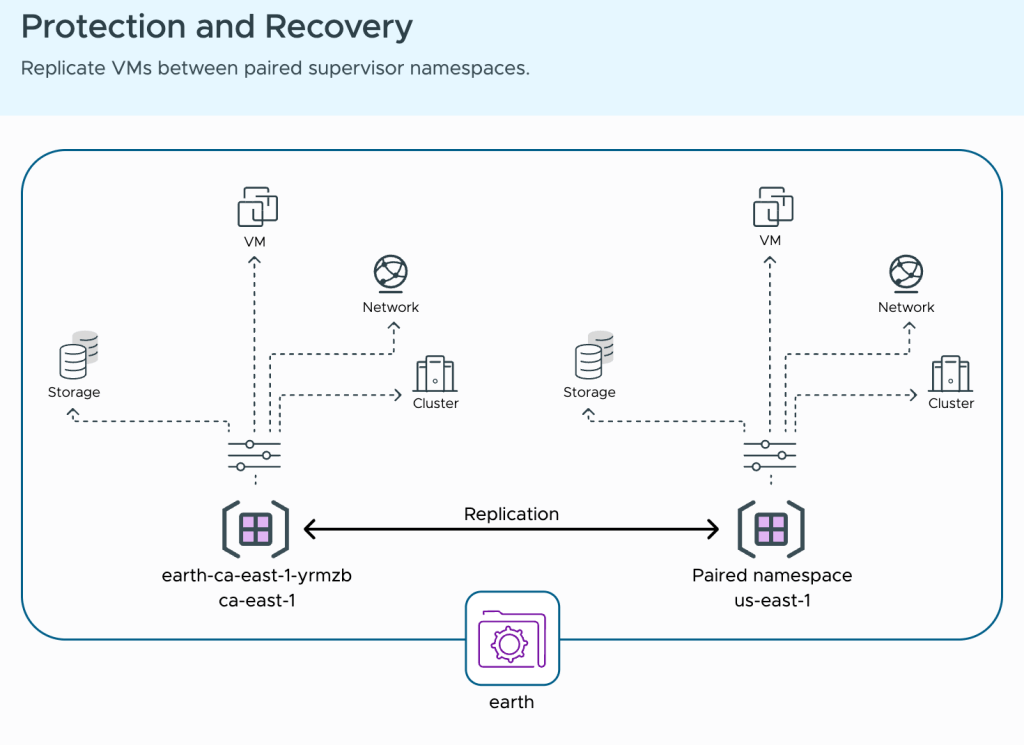
Protection and Recovery is an optional Supervisor service in VCF 9.1. For VCF Automation, Protection and Recovery lets authorized organization users define replication policies for VM Service VMs and replicate them between a pair of namespaces, one in each region. Users can then recover those VMs during a disaster, and reprotect them afterwards.
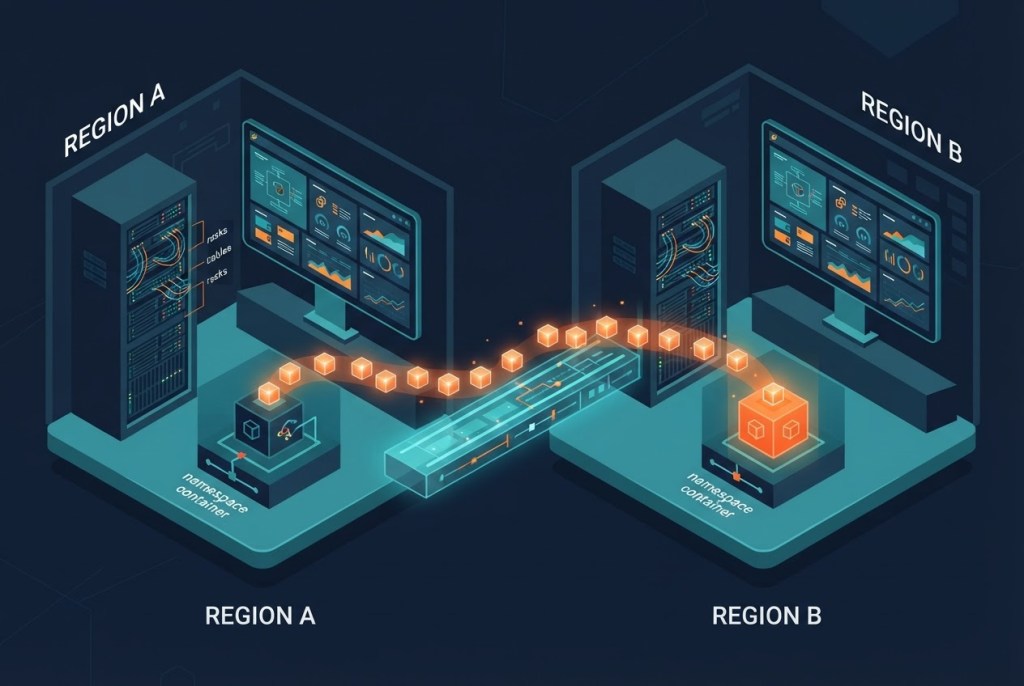
The simplest topology replicates VMs from a namespace in one region to storage in a namespace in a second region. Replicas in the second region are what you recover from if the first region fails.
Choosing a topology
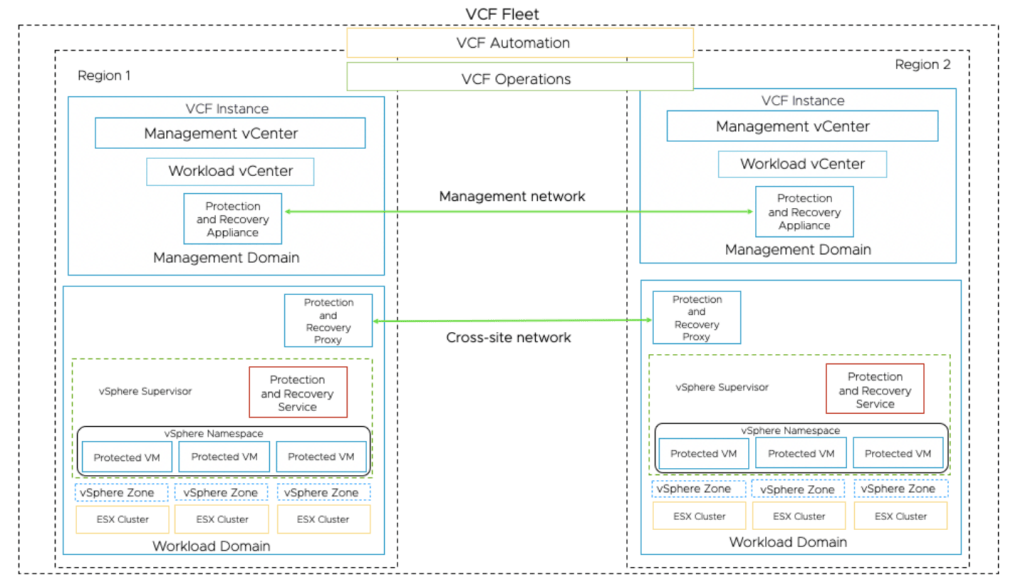
Most enterprises with more than one datacenter run a single VCF fleet with at least one VCF instance in each site. This layout fits disaster recovery well. Each site has its own management domain and workload domains. The usual approach is to protect workloads in one site and recover them in the other if that site fails.
The example in this post uses two sites with a single pairing of vCenter Servers. Other topologies are supported too. The supported topologies are listed in the Broadcom documentation on supported topologies.
What to prepare
- Both sites run VCF 9.1.x.
- The Supervisor Management Proxy Service installed on each vCenter Server, Deployment will fail if this is not installed.
- Supervisor control plane VMs should be at least the Medium size.
- Enough management domain resources for the Protection and Recovery appliance. Use the Large deployment type for standard production workloads.
- The same storage class name created in both regions, using a Kubernetes-compliant name.
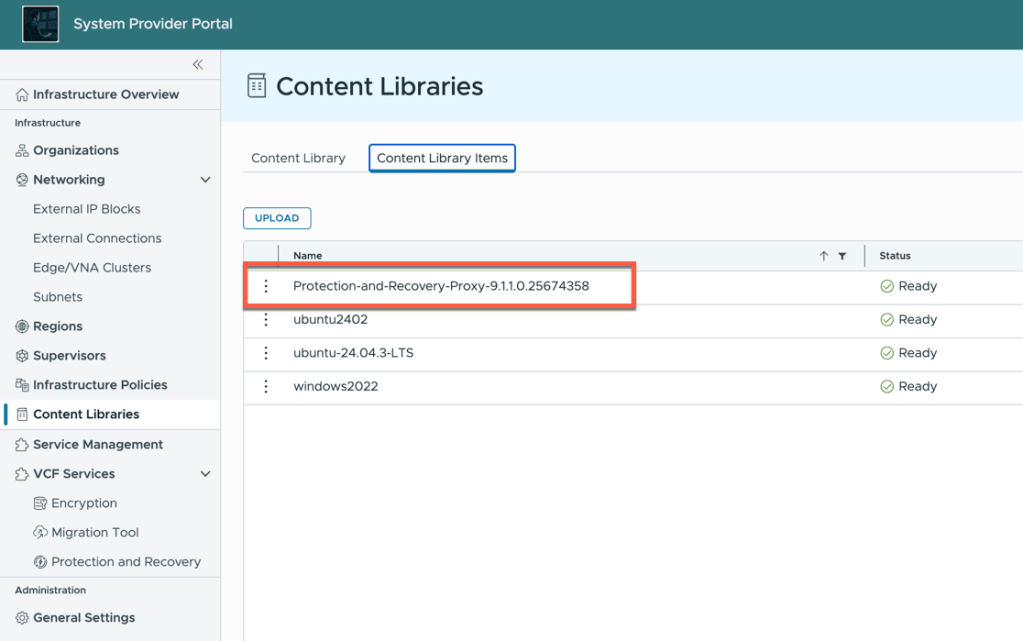
- The Protection and Recovery Proxy Appliance uploaded to the VCF Automation content library and available in all regions where proxies will be deployed (download from the Broadcom support site)
- A layer 3 routable network between the regions for the proxies to send and receive traffic. Jumbo frames are recommended but not required for the cross-site network. Use the Protection and Recovery Calculator to size the bandwidth.
- On each ESX host that sends or receives replication traffic, a VMkernel adapter tagged for vSphere Replication traffic.
Protection and Recovery service installation and configuration
Step 1: Deploy the DR operator in the Supervisors
The DR operator is a Supervisor service: a vSphere-certified Kubernetes operator that delivers an infrastructure component to a Supervisor. In this case, it provides disaster recovery to the VM Service VMs in that region’s vCenter Server.
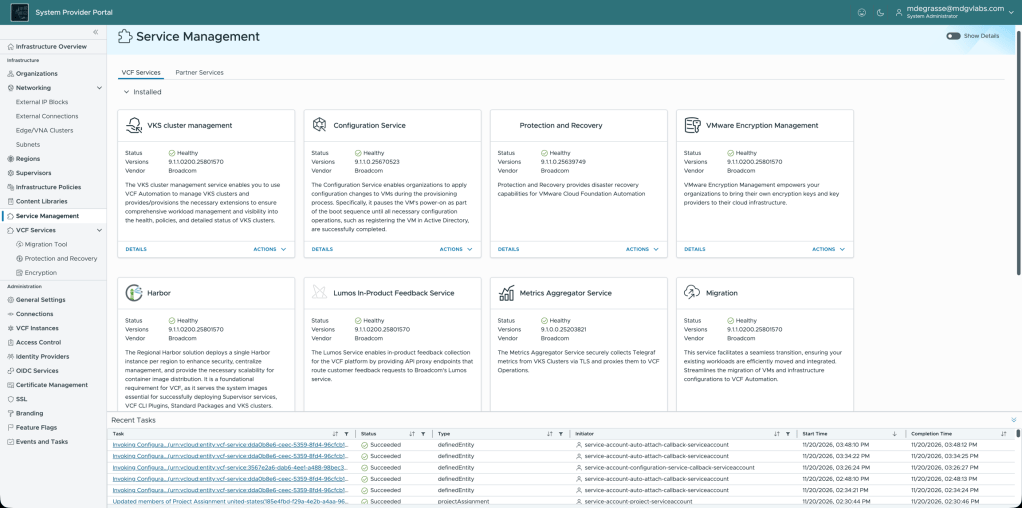
Deploying it is simple. Sign in to the VCF Automation Provider Management UI as the provider organization, click Service Management in the left navigation pane, and open the VCF Services tab. Find the Protection and Recovery service, edit its configuration, and select the regions to deploy it to. That selection sets which Supervisors get configured. When the deployment finishes, the Protection and Recovery tile should show healthy and ready. Move on only after that.
In my example below, the service was already installed, scroll down to see uninstalled services and install it. Installing it or clicking Actions/Edit brings you to the same screen where you select the regions you want to deploy to.
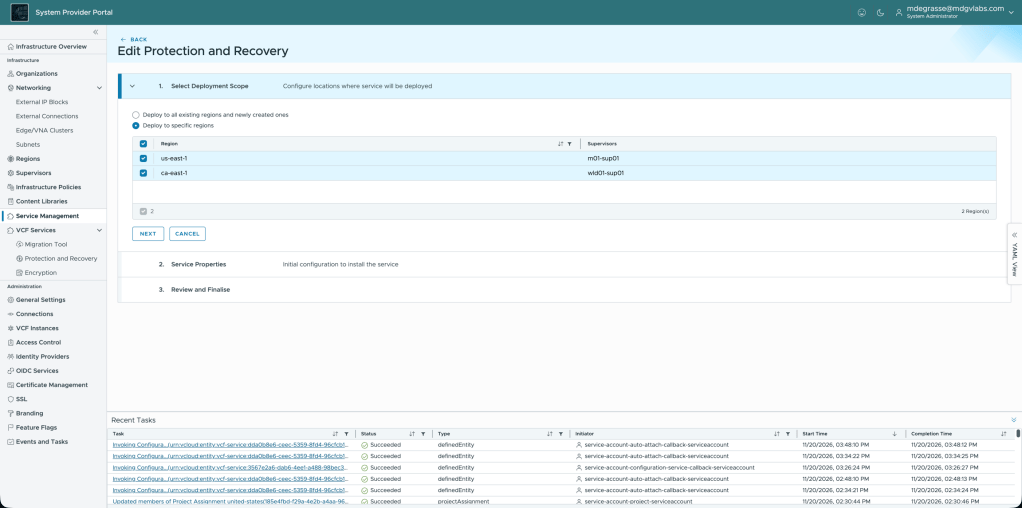
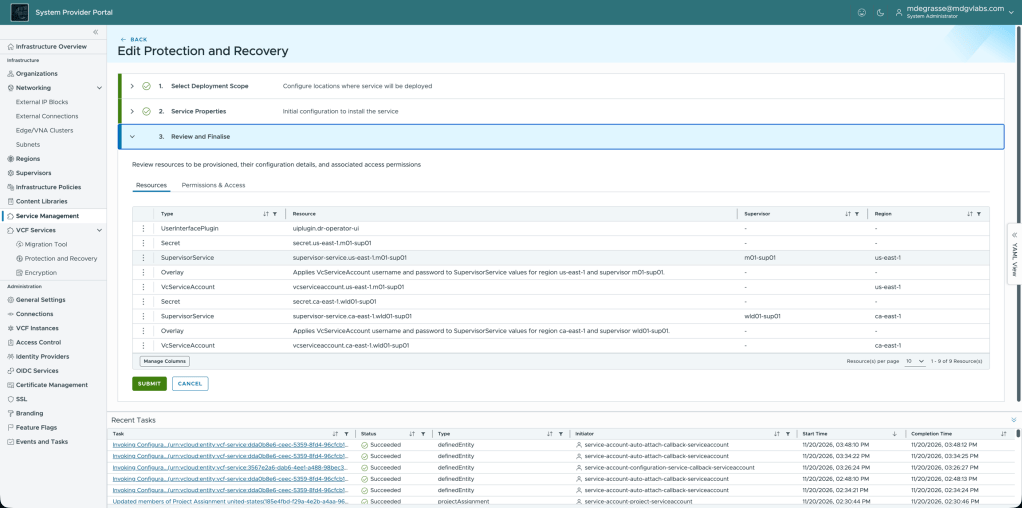
Click next thru the panels. You do not need to make any changes to the Service Properties, this will be auto filled.
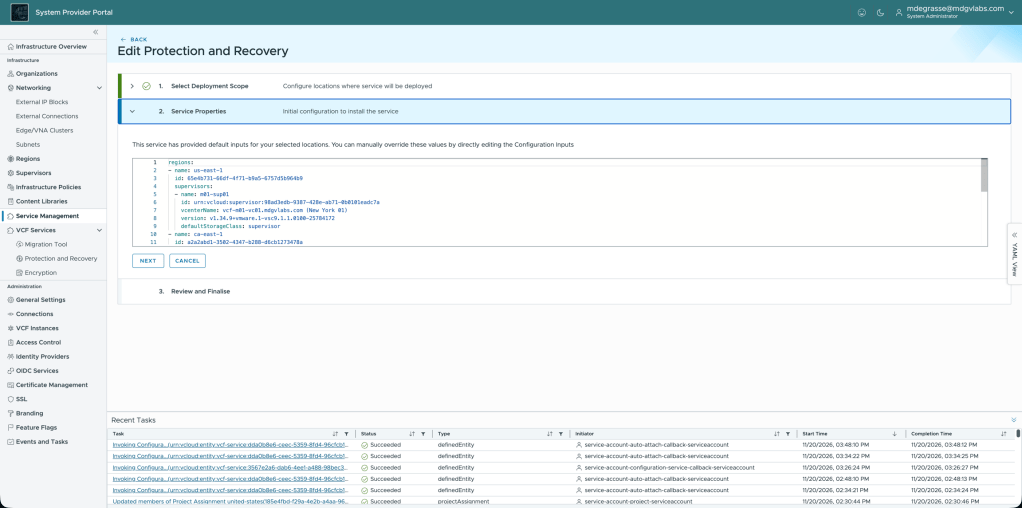
Click Submit to trigger the deployment to the selected regions.
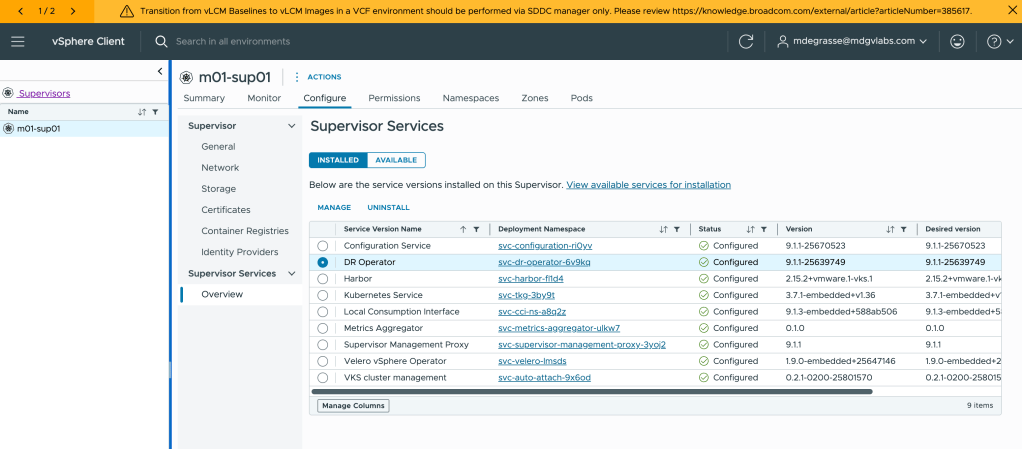
Once successfully deployed, you can also double check in your vCenter on the supervisor and validate that the DR operator is healthy and configured.
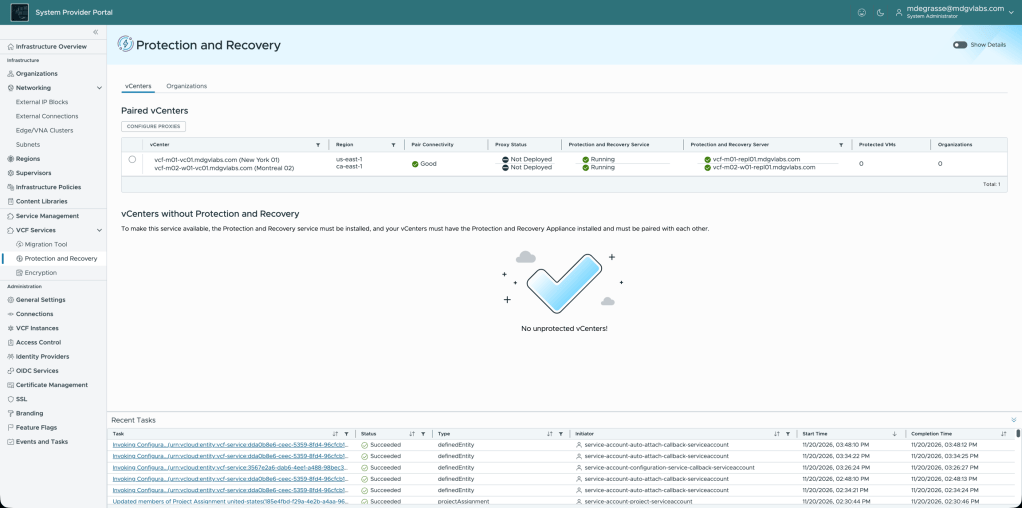
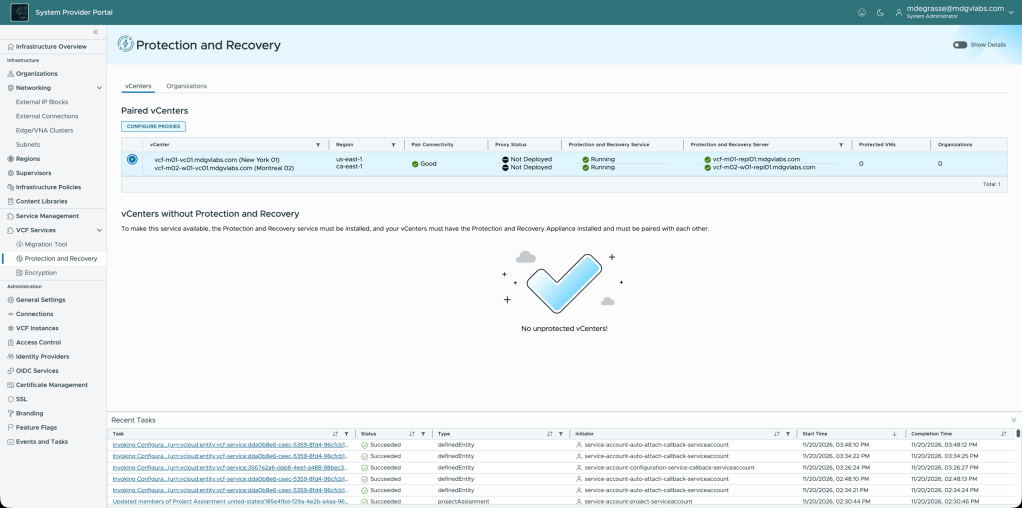
Back to the VCF Automation Provider interface, in the VCF Services / Protection and Recovery tab, validate the health of the services. You will see that the proxy status is not deployed and that will be the next step.
Step 2: Configure the replication proxies
This step assumes the vCenter Servers in both regions are already paired with vSphere Replication. With Enhanced vSphere Replication, introduced in vSphere Replication 9.0, you do not deploy additional vSphere Replication Server (VRS) appliances to scale out traffic. Replication uses direct host-to-host traffic: it bypasses the target appliance and streams directly from the source ESXi host to the ESXi hosts in the target cluster. Multi-tenant DR (MTDR aka Protection and Recovery) is different. It needs replication proxies to move data between the regions, so configure them before any organization VM can be protected.
Go to Infrastructure, then VCF Services, then the Protection and Recovery tab. This tab lists the paired vCenter Servers and shows the health of each pair’s connectivity and of the Protection and Recovery service. Right after the service is deployed, the proxy status shows as not deployed. That is the cue for this step.
- Select the vCenter pair you want to configure, then click Configure proxies.
Make sure the Protection and Recovery Proxy Appliance is uploaded to the VCF Automation content library before the next step.
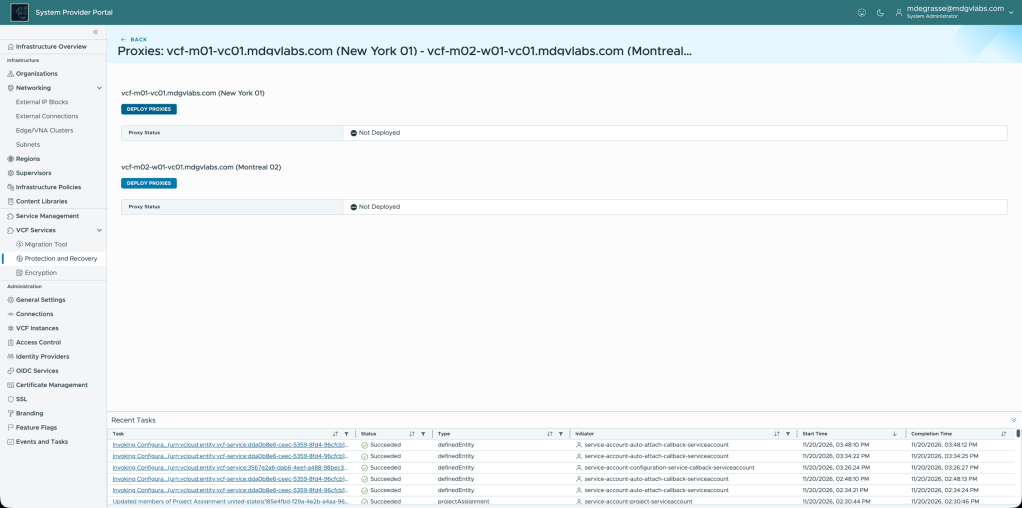
Click Deploy proxies for each vCenter Server in the pair. In the deployment form, pick the Protection and Recovery image from the content library, then choose a storage class. The storage class determines the datastore where the proxy VMs are deployed. Click next for Cross Site Network Config.
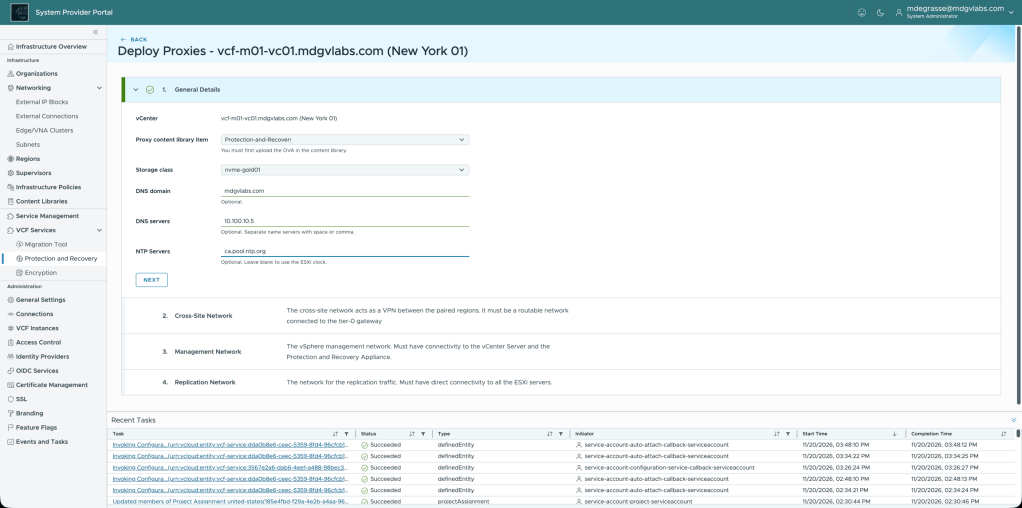
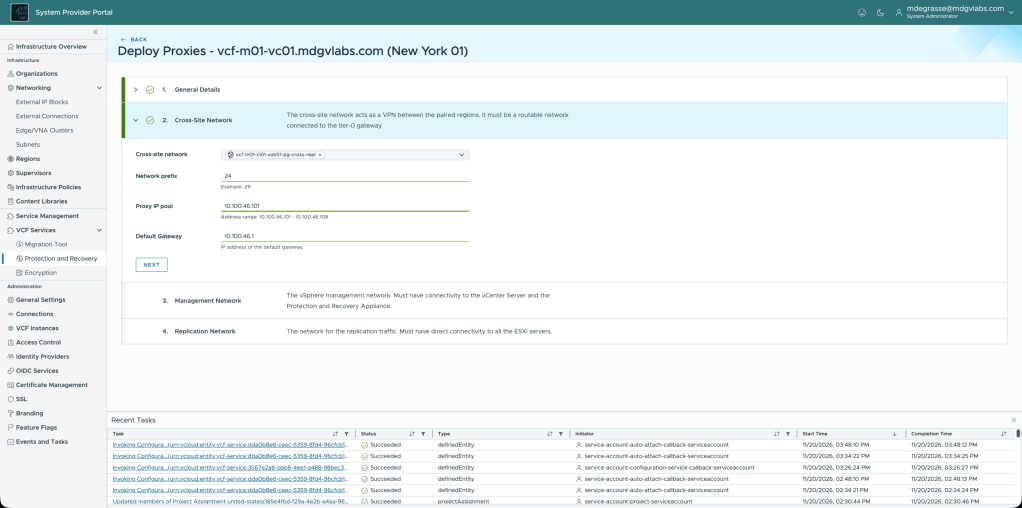
Configure the cross-site network. This is the dedicated network used to reach the remote site, and it is required. It must be routable. The proxies scale automatically, so give it a range of 8 contiguous IP addresses. The IP address you enter is the start of that range. Also enter the network prefix and default gateway. Click next to go to the Management Network config.
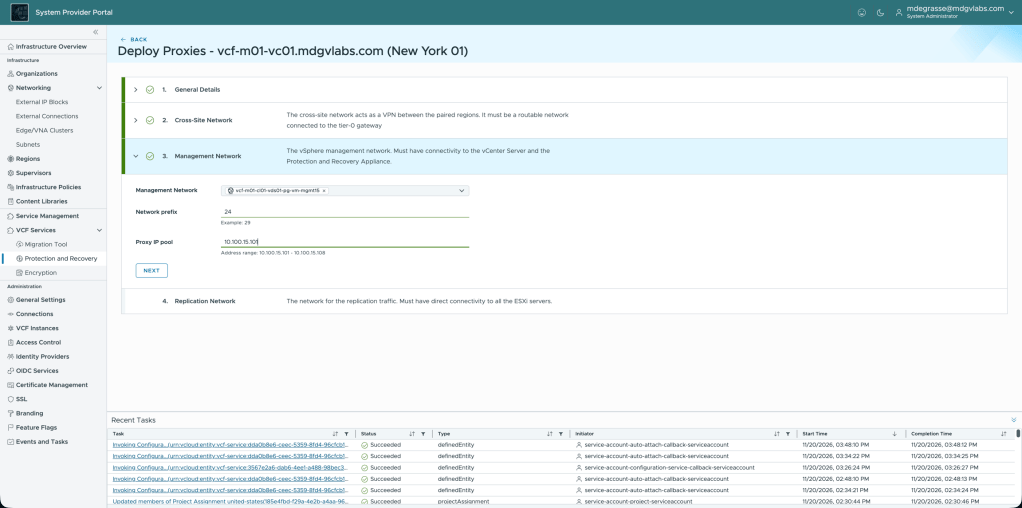
Configure the management network. This is the network the appliances use to communicate with management. It also needs a range of 8 contiguous IP addresses. The IP address you enter is the start of that range. Click next to configure the Replication Network.
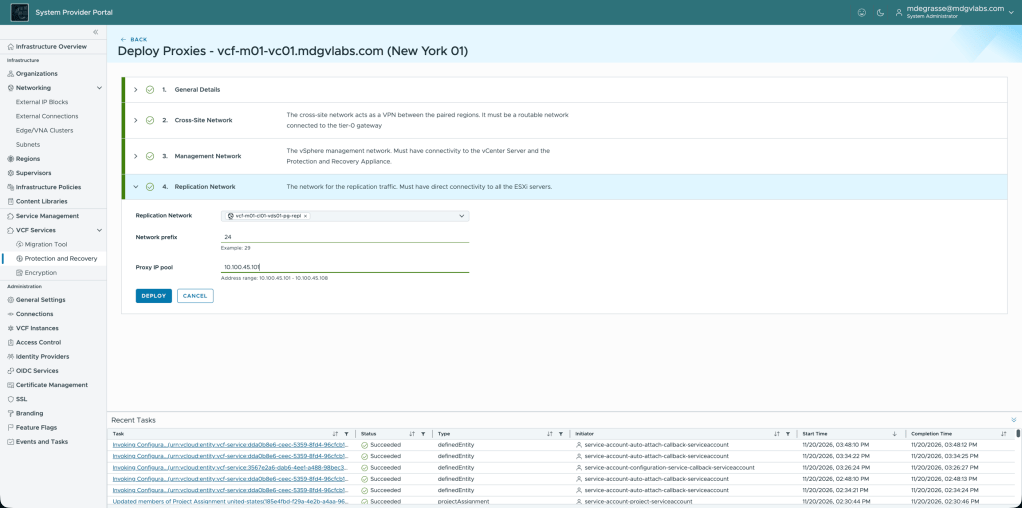
Configure the replication traffic network. It carries the actual replication traffic from the virtual machines and ESX hosts, and it must have direct connectivity to all the ESX hosts. It also needs a range of 8 contiguous IP addresses, and the IP address you enter is the start of that range. Every ESX host must have a dedicated VMkernel interface on this network, with the replication service assigned to that interface. Click Deploy.
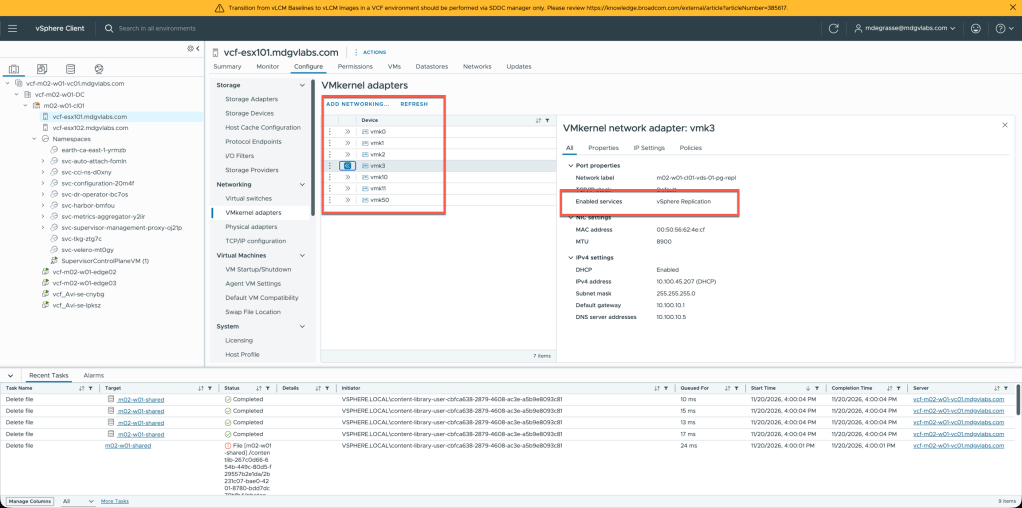
In the process, you should validate that your hosts have been configured with a VMkernel interface dedicated to replication. Look for a VMkernel that has the vSphere Replication service enabled. This is a manuel step you have to do on each host.
After clicking Deploy, wait for the proxies to finish installing. By default, three replication proxies are deployed for each vCenter Server. The deployment runs in the background, so refresh the screen to see progress. You can also check in vCenter to see the deployment of the proxy VMs (they will be in a resource pool called Protection and Recovery Proxies)
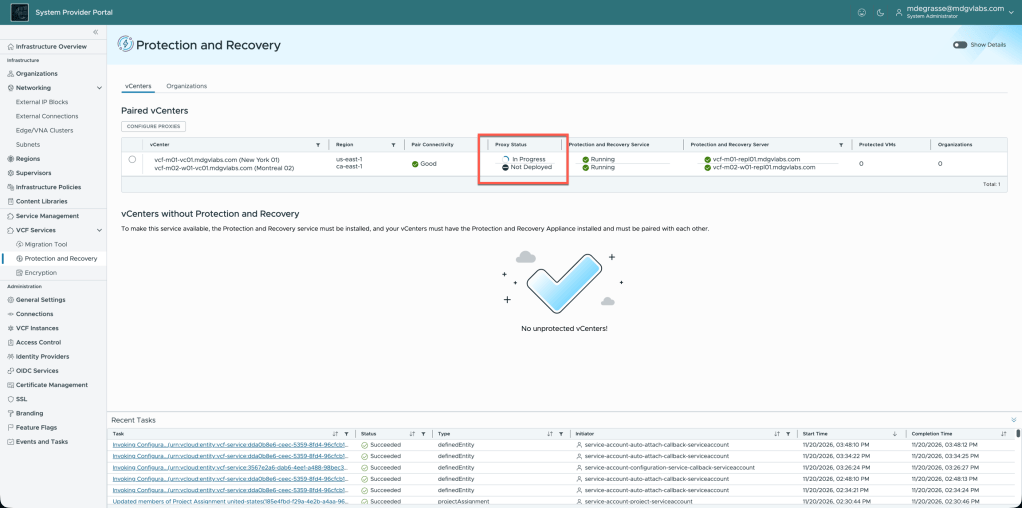
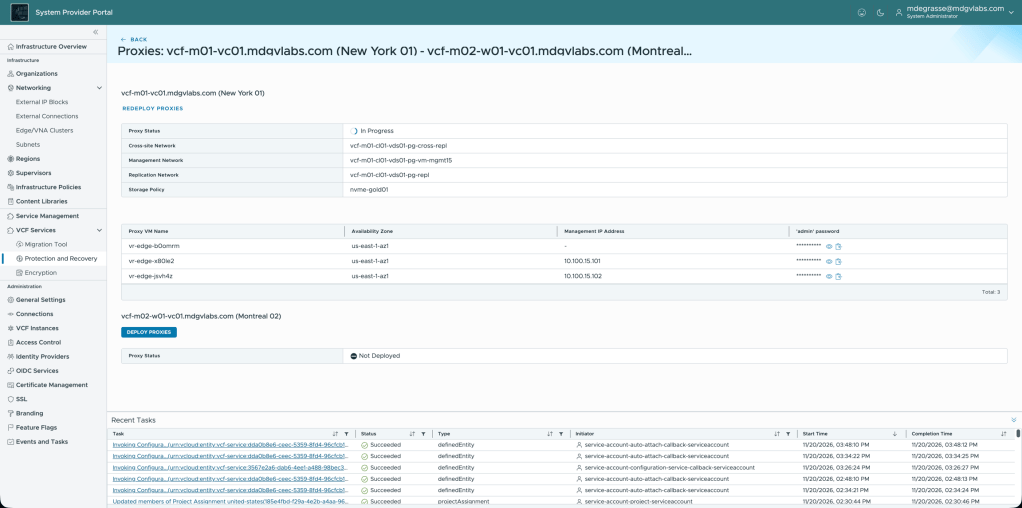
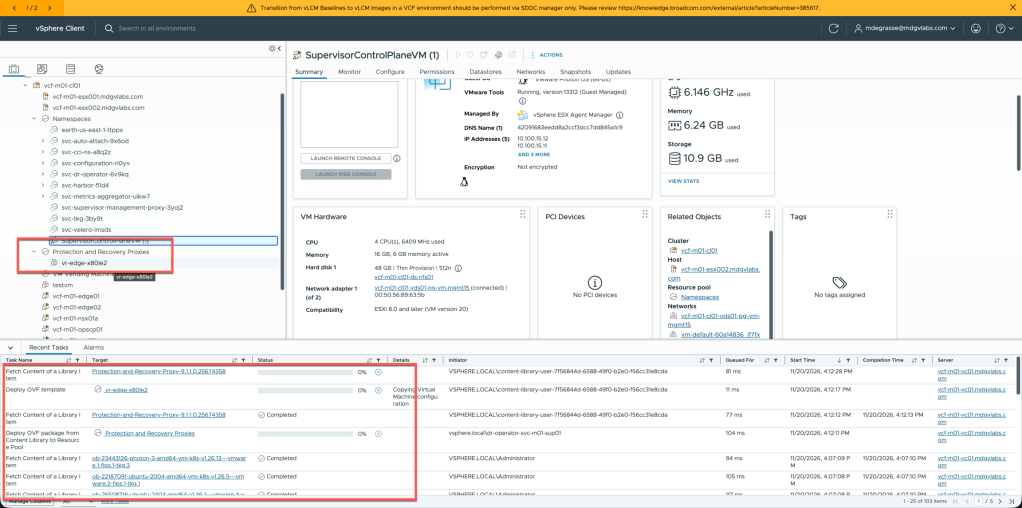
When the proxies on the first vCenter Server are deployed, reselect the pair, click Configure proxies again, and repeat the steps for the vCenter Server in the other region. Both Regions need to be configured, its the same steps we just completed.
When the proxies are deployed on both vCenter Servers and the pair connectivity and service health look good, you can move on to the organization-level steps.
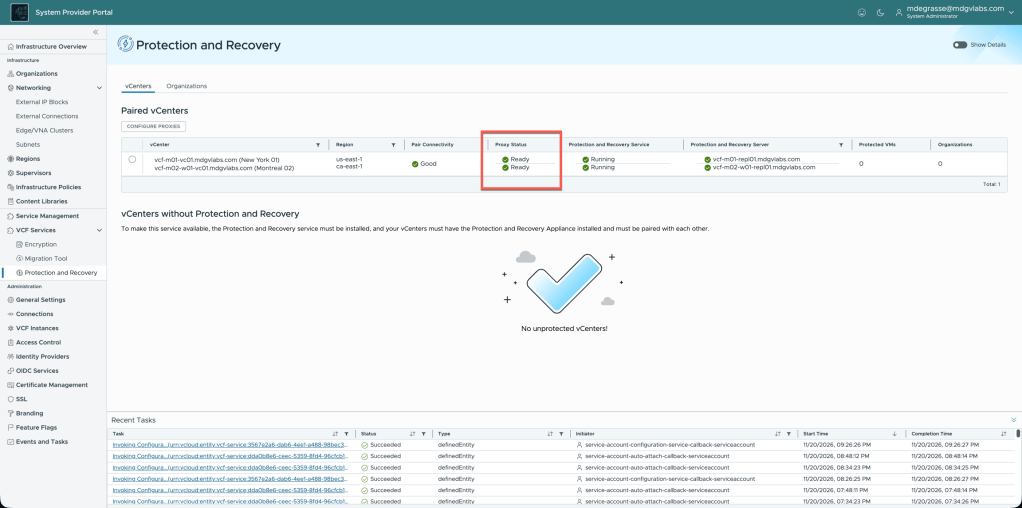
Assign replication classes to the organization
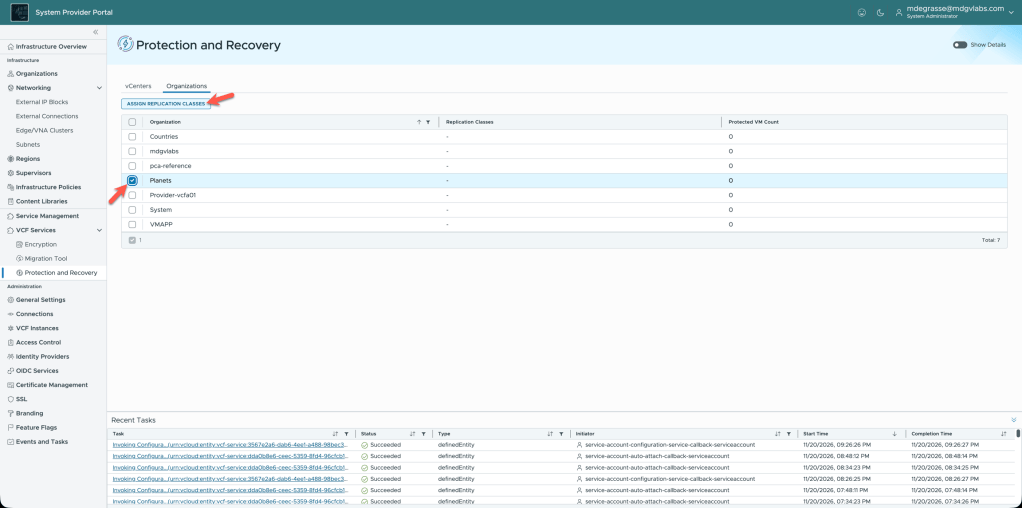
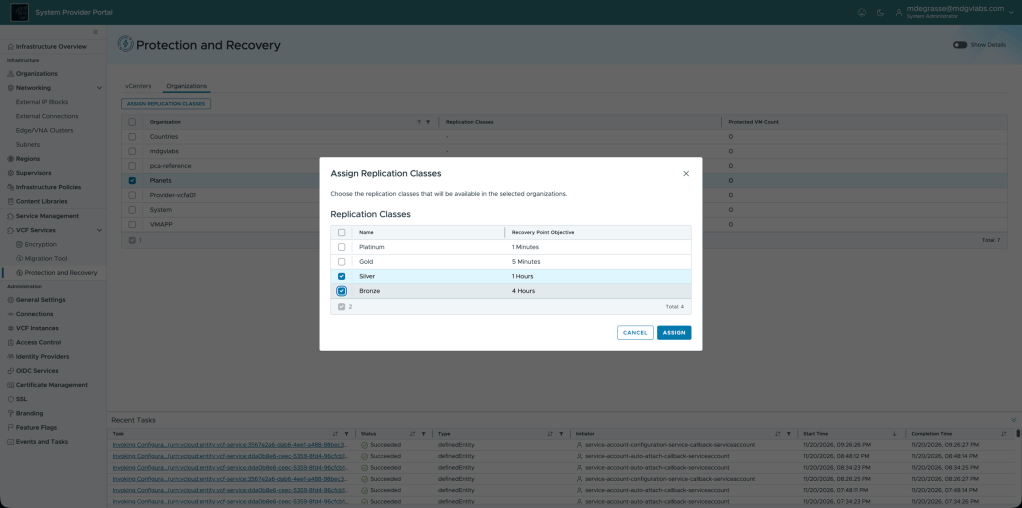
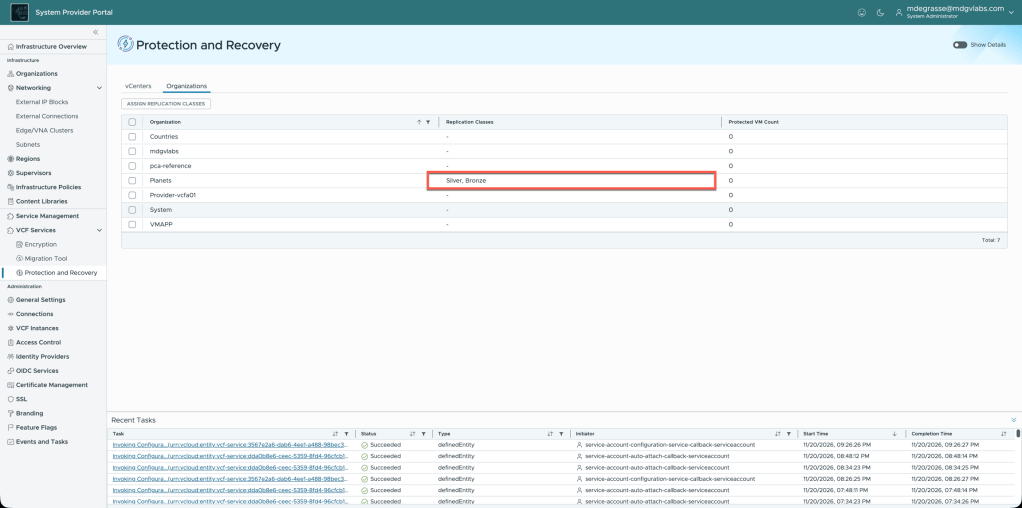
Once the proxies are configured, the provider selects which replication classes each organization can use. A replication class is a preconfigured Recovery Point Objective (RPO), which is the maximum data loss you can tolerate after a disaster. The available classes are Platinum (1 minute), Gold (5 minutes), Silver (1 hour), and Bronze (4 hours). You can assign any subset of them to an organization.
To assign them, go to Services, then Protection and Recovery, open the Organizations tab, select the organization, and click Assign Replication Classes. Users in that organization can then choose a class and its RPO when they configure replication for a VM.
The per-organization steps
The organization-level work is split between two roles. The Organization Administrator sets up the organization for protection. In the two paired regions, the Organization Administrator creates namespaces, pairs them, and defines network mappings between them. Each namespace that holds workloads needing protection gets a matching namespace in the other region to hold the replicas. The second role, the Project Administrator or Project Advanced User, handles the day-to-day protection of workloads. That work is covered in the next part of this series.
Summary
This post covers the setup in VCF Automation that prepares for protecting workloads: installing the Protection and Recovery service, configuring the replication proxies and assigning replication classes to the organization. Protecting and recovering workloads is the subject of the next post in this series.




Leave a Reply