If you’ve recently found yourself rolling out VCF 9.1 express patches, you might have run into situations where you need to troubleshoot the upgrade of some VCF 9.1 VSP components.
The first reflex to tracking down the root cause meant rolling up your sleeves, SSHing directly into one of the VSP cluster control nodes, and firing off a series of kubectl logs commands. Whether you were hunting through the vcf-fleet-lcm or vcf-sddc-lcm namespaces, the process was inherently cumbersome. It required context switching, manual pod identification, and a solid baseline of Kubernetes CLI knowledge just to get eyes on the right errors.
But there is another , centralized alternative
The Centralized Alternative: VCF Operations for Logs
By default, most VSP components and pods are configured to send their logs directly to VCF Operations for Logs. This means you can skip the SSH sessions entirely.
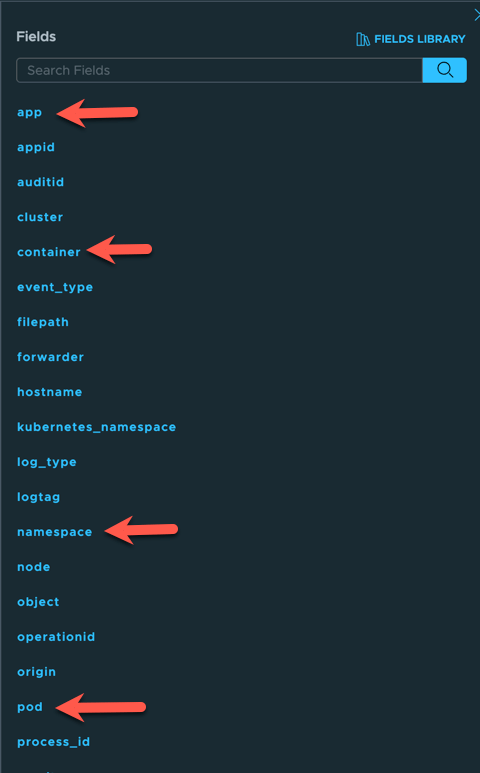
When these logs are ingested, they are automatically parsed. The system extracts specific fields that contain crucial pod and container information, making it incredibly easy to pinpoint exactly where a log message originated. One of the most useful of these is the app field, which tags the specific application tied to the event. pod, namespace and container fields are also looked up very often.
In theory, simply using the app field as a filter should give you a clean, isolated view of the logs for a specific pod/container. In practice, however, you might run into a performance wall.
The Snag: Timeouts and High Resource Consumption
When I first started relying on the app field to filter logs during my 9.1 patching, the results were mixed. On larger time samples, the queries would hang and eventually time out.
Granted, my lab environment runs a single replica with a small-sized Log component, but a simple text filter shouldn’t crush the system. To figure out why the queries were failing, I had to ironically fall back to my old habit: looking directly at the logs on one of the VSP control nodes.
The control node logs, specifically for the log-processor pod in the ops-logs namespace, revealed several warnings stating that my query tasks were being killed due to high resource consumption.

The Fix: Indexing the Field
After digging into the configuration, the root cause became obvious: the app field is non-indexed by default.
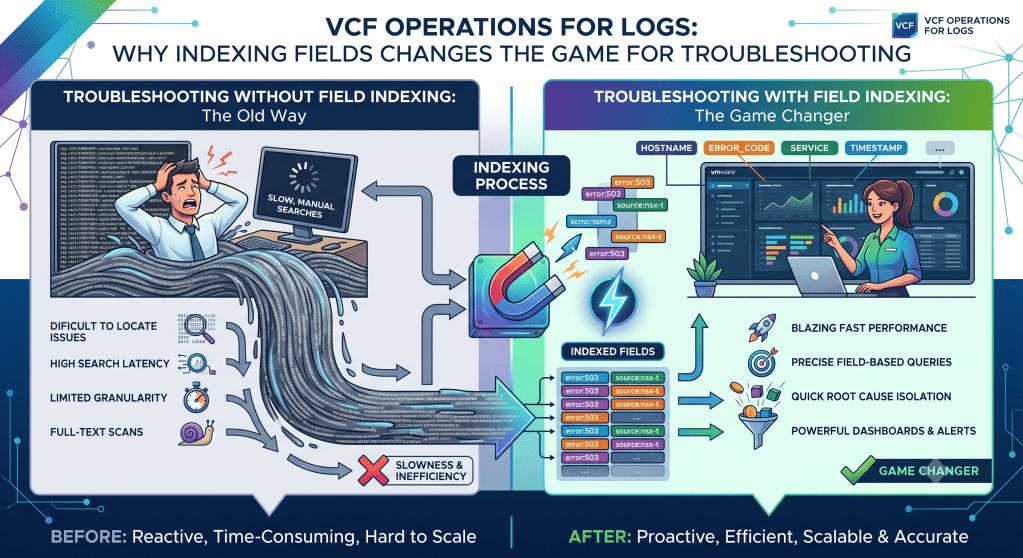
Every time I ran a query filtering by app, VCF Operations for Logs was forced to perform a highly resource-intensive, full-text scan across the dataset instead of a quick lookup. On a small time sample, the system could brute-force it. On a larger timeframe, the compute overhead was simply too high, causing the task to terminate to protect the pod.
The solution is straightforward: To optimize your log queries and stop the timeouts, you need to convert the app field into an indexed field within VCF Operations for Logs.
By indexing this field, the backend creates a structured lookup table for those values. Your pod-specific queries will execute exponentially faster, consume a fraction of the compute resources, and allow you to troubleshoot VSP components seamlessly from the UI without ever needing to touch the kubectl CLI.
Tip: If you regularly filter by other extracted pod metadata (like container, namespace, pod), consider auditing those fields to ensure they are also indexed before you run into similar performance bottlenecks during a critical troubleshooting session.
Here are the steps to enable (or remove) indexing on a field in VCF Operations:
Open up the fields library
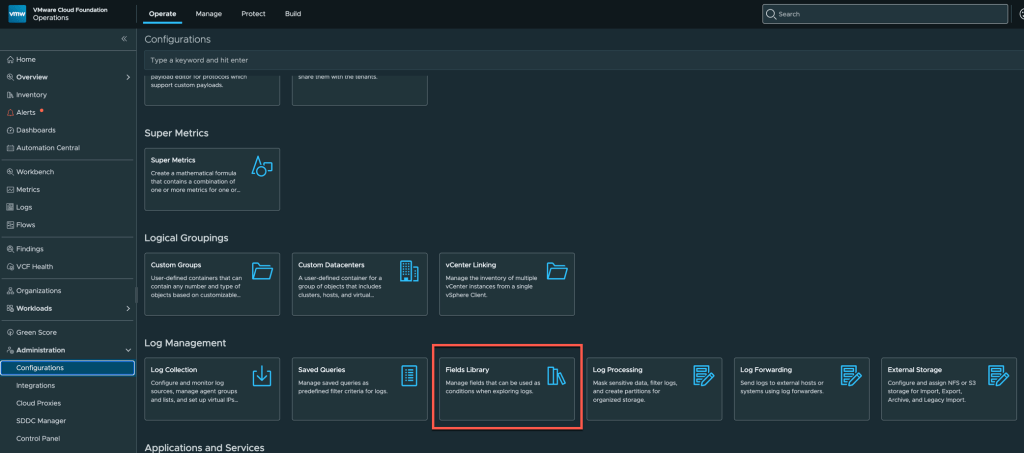
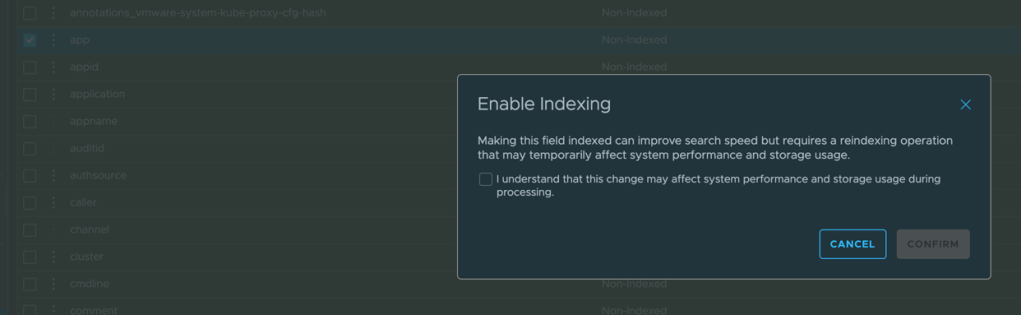
Click the … for the field to index and select Index Field. Rediscover will revert to a non indexed field.

Acknowledge the warning and click confirm.
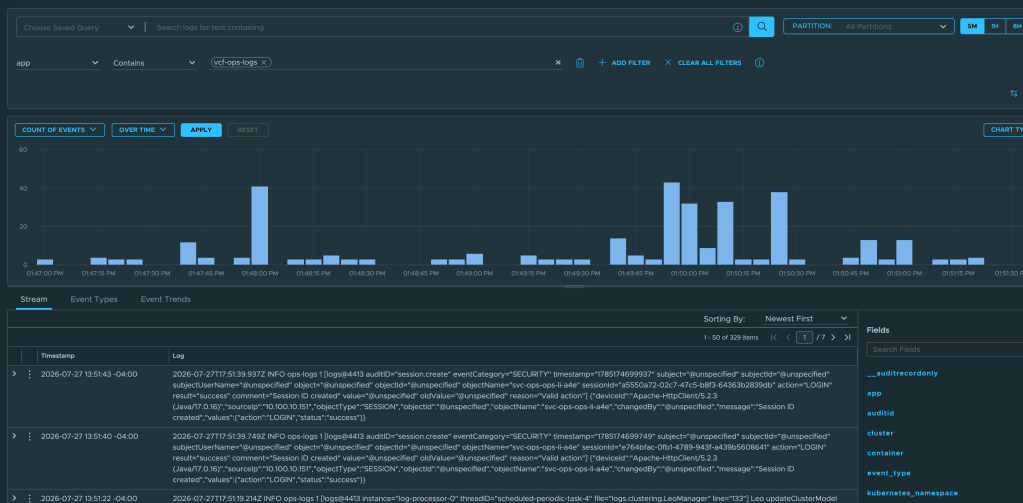
Now run your query using the newly indexed field and see the performance difference!
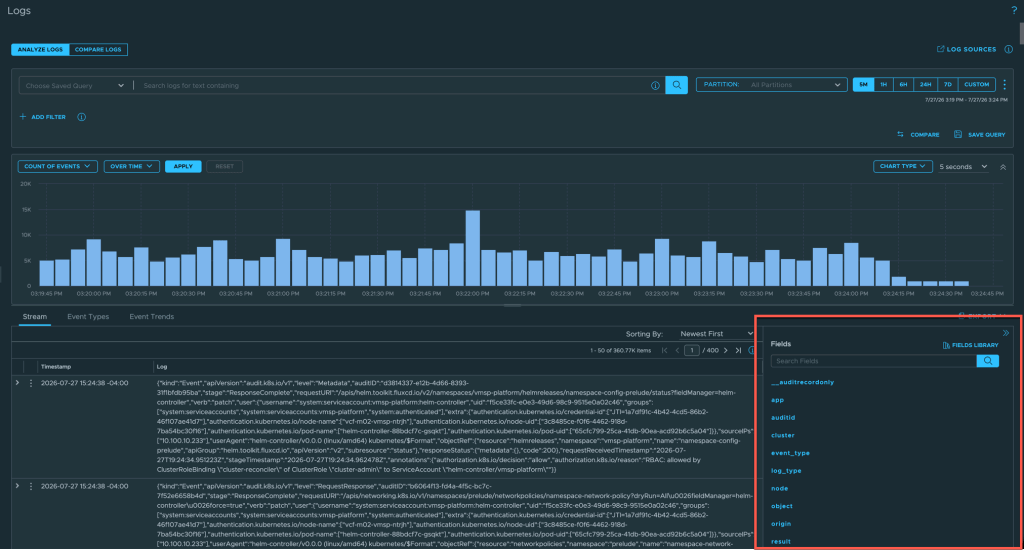
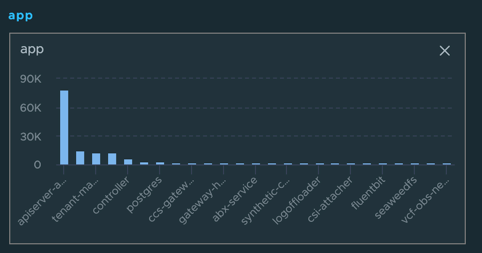
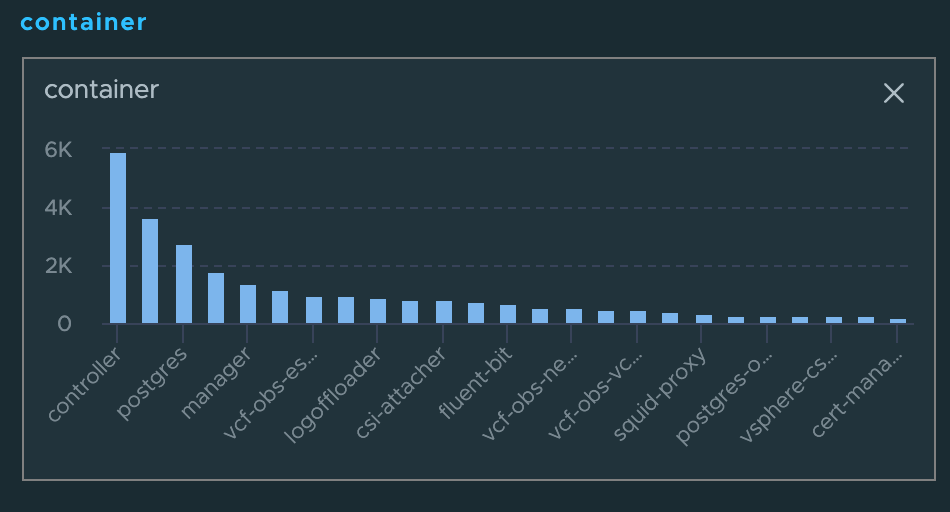
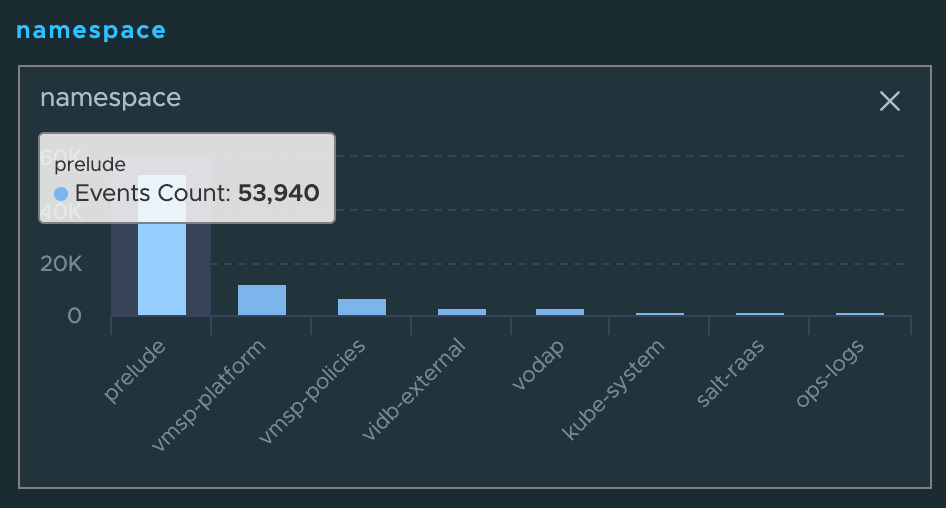
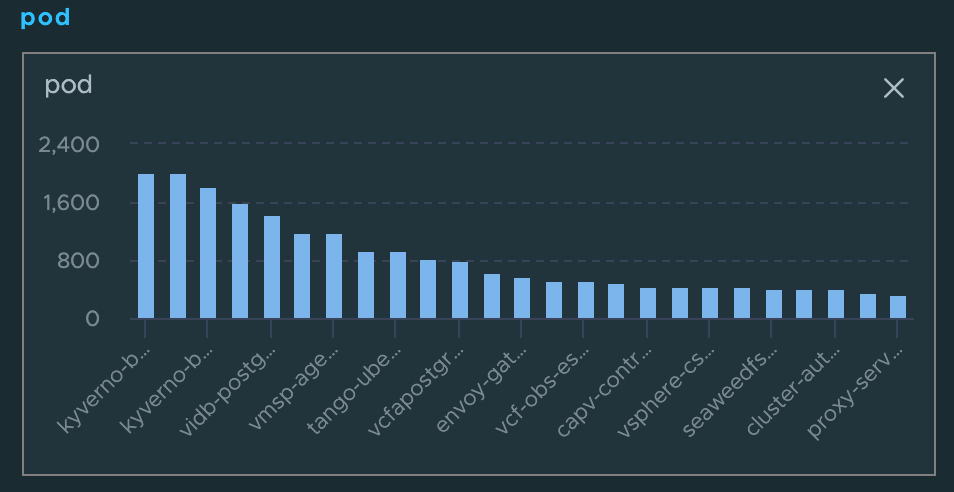
If you are looking for names to query for the typical app, pod, container and namespace fields (or any other field for that matter…) simply click on the field itself to see the list of values that were discovered for that time period. You can also click on a value to automatically add it as a filter to the query.





Leave a Reply