VCF 9 services like VCF Operations now use token based service accounts to connect and integrate to VCF Automation aka VCFA. The use of token based service accounts is not limited to VCF 9 services, but can and should be used by third party integrations.
The specific use case for this blog is for the integration of VCF Operations to connect to VCFA. Normally, when deploying VCFA using the new Fleet Manager, this is configured automatically for us. But i encountered a situation where the integration was not working.
The context: I deleted the VCFA instance in my lab to redeploy it using a new naming convention. I had backups and figured i would test the backup/restore feature at the same time. I used the Fleet Manager to restore my data in VCFA and that worked fine. What i did not expect is that the initial service account in VCF Operations to connect to VCFA would not be deleted when i removed VCFA. When i redeployed VCFA, it created a new service account but did not update the integration in VCF Operations.
Service accounts in VCFA are created in the context of an Organization (tenant). For the integration with VCF Operations, we need a service account that has a global view of the VCFA instance, thus we will will use the Provider Organization.
So, a new token service account would have to be created in VCFA and would need to be used in VCF Operations. Here is the procedure to do this:
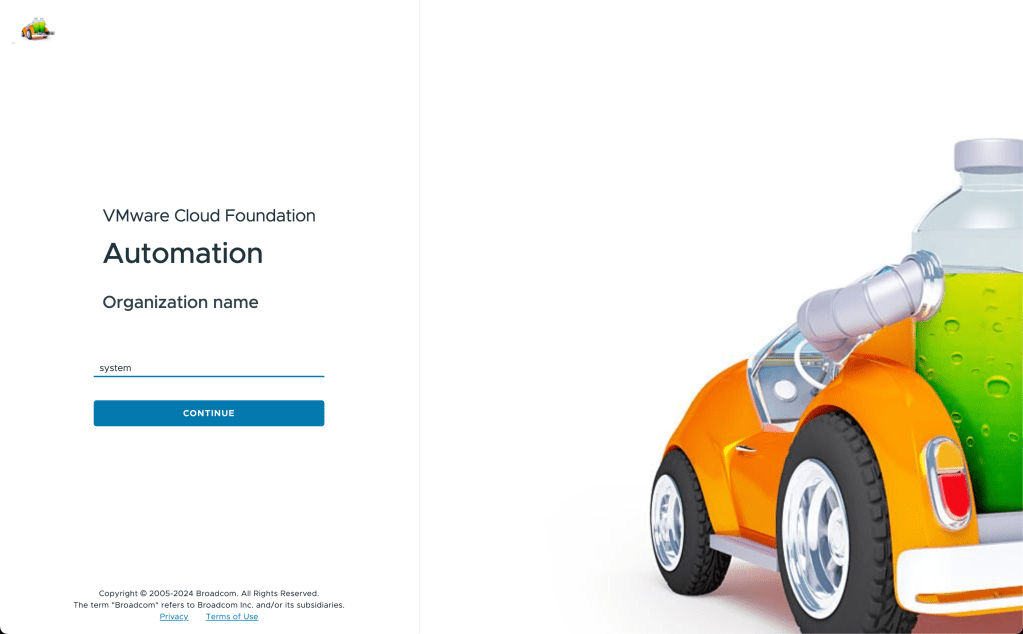
Login into the Provider Organization (system) in VCFA
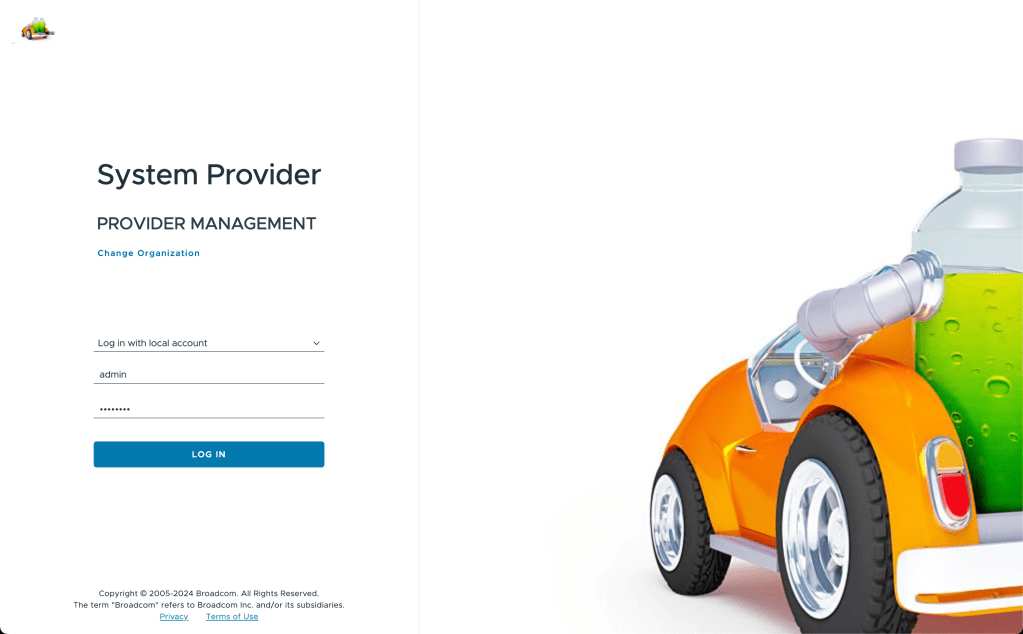
Next, if you already have configured an identity provider you can use it, if not use the local admin account
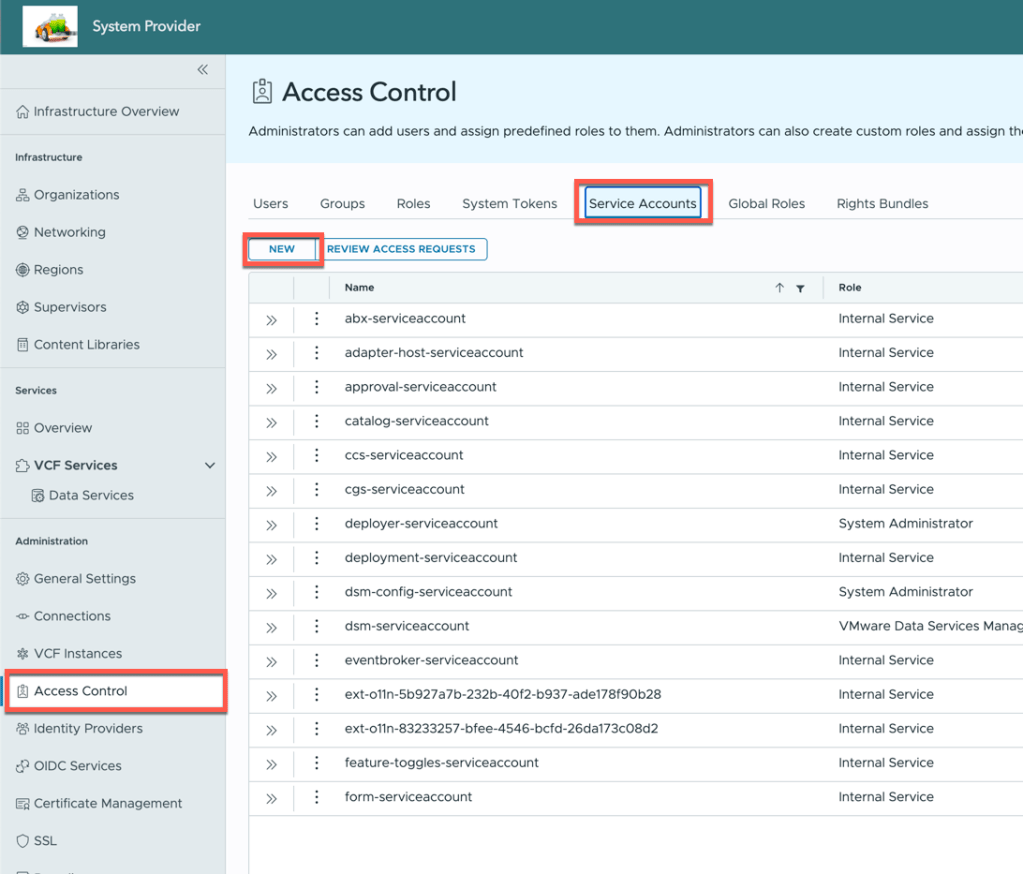
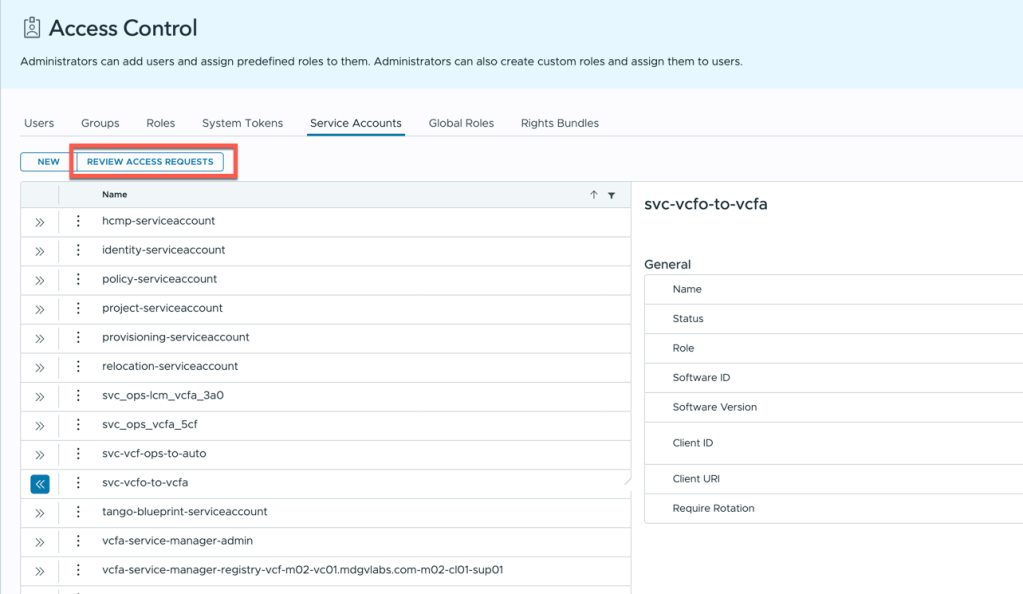
Next, Select Access Control , Service Accounts and click NEW
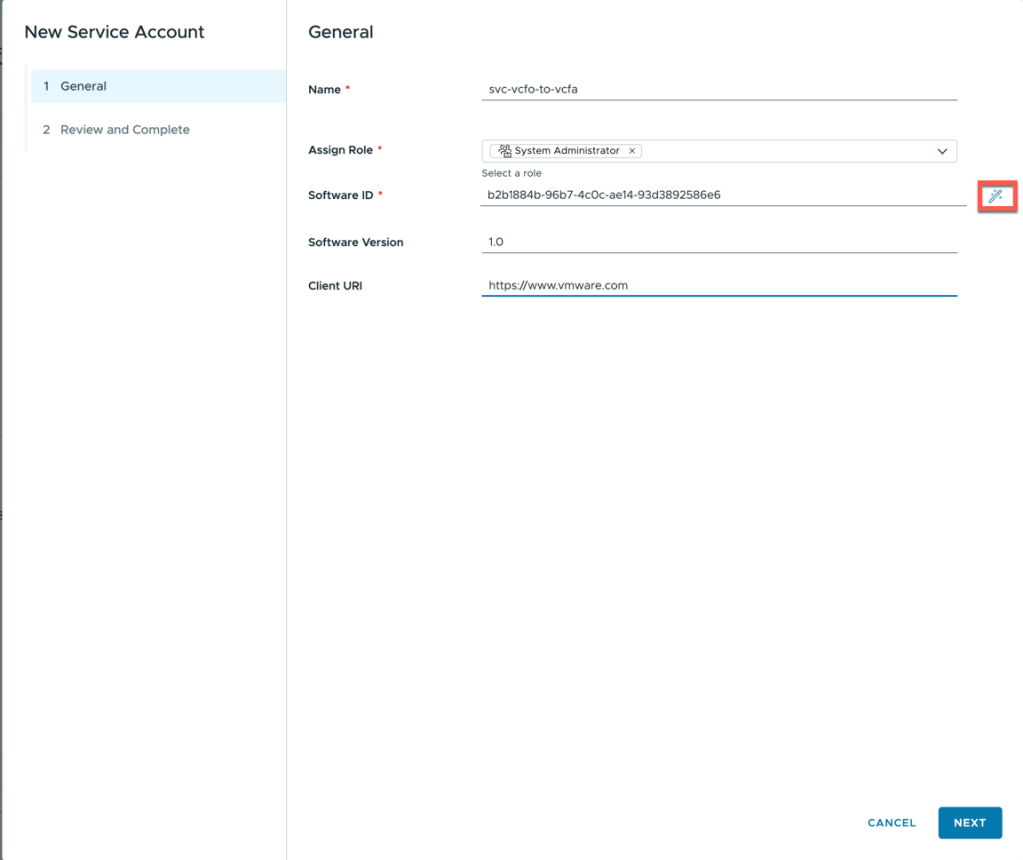
Give your service account a name, assign a role and unique Software ID. You can click the little wand icon to generate a unique Software ID. Software Version and Client URI are optional fields and can be left blank if desired.
Click next to review and finish to create the account
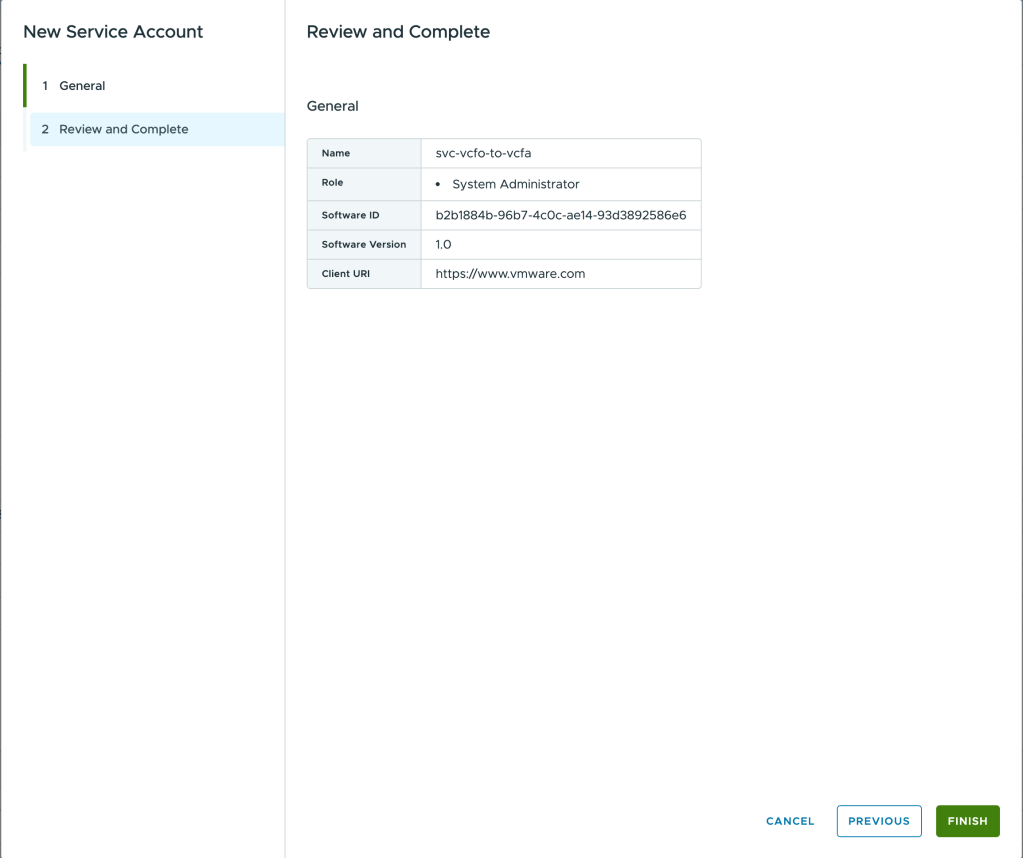
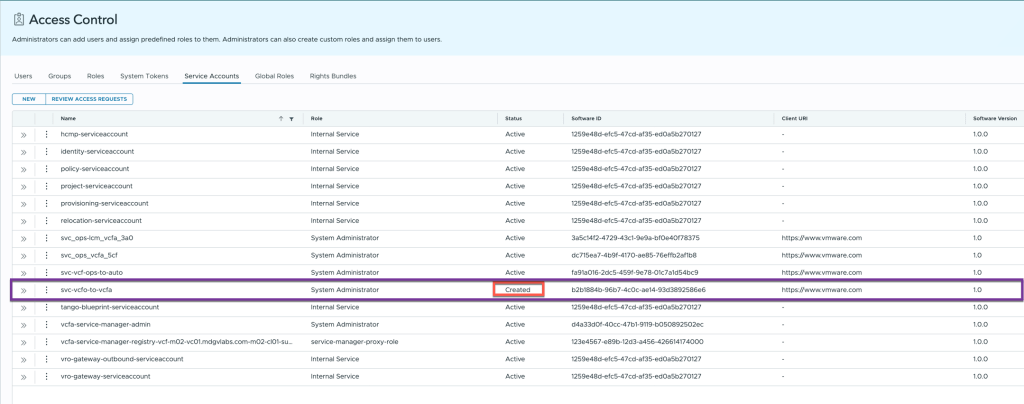
You should now see your new service account with a status of CREATED
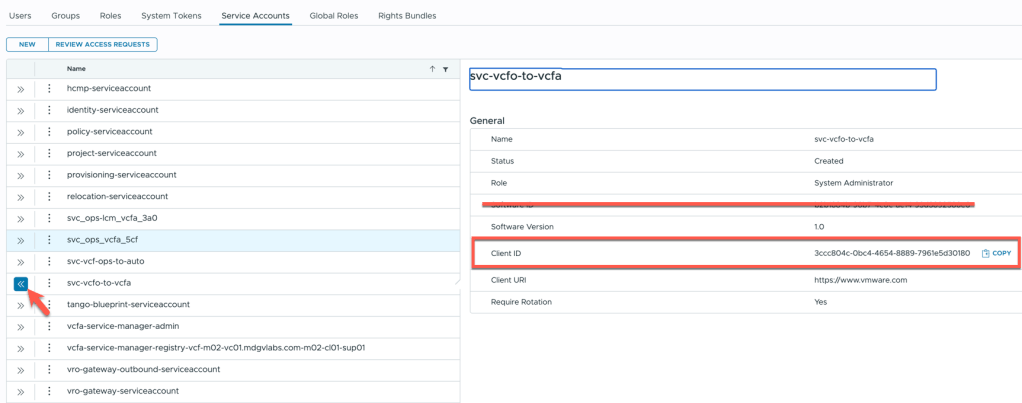
We need to capture the CLIENT_ID of your new account, click the >> symbol to view your account details and note the Client ID (Do not confuse this with the Software ID!). The Client ID will be used in the next steps to activate your service account.
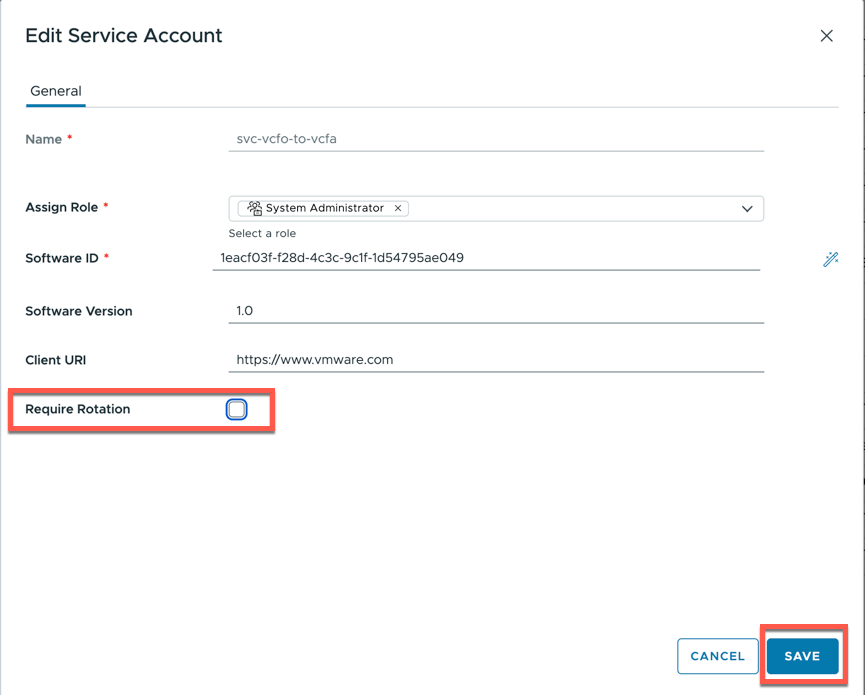
VERY IMPORTANT: you need to edit the account and remove the Require Rotation option
The next steps requires some REST API calls. I use Bruno (like POSTMAN). You can use whatever method you prefer
We need to use a POST call to https://{{vcfa}}/oauth/provider/device_authorization with the Client ID as a parameter
NOTE: in this example, the service account is in the Provider Organization. If you want to manage service accounts in other Organizations, the URL to use is https://{{vcfa}}/oauth/tenant/{{ORG_NAME}}/device_authorization where ORG_NAME is the organization name where the service account is created.
POST https://{{vcfa}}/oauth/provider/device_authorization?client_id=3ccc804c-0bc4-4654-8889-7961e5d30180

If successful, this will return a json response like the following:
{
"device_code": "uLof2ARXTa2vFL0rYZeCYCEgElI8CCtZ8dEXxrFMsTI",
"user_code": "WP3C-Z2TQ",
"verification_uri": "https://vcf-m02-vcfa01.mdgvlabs.com/provider/access-control/service-accounts",
"expires_in": 3600,
"interval": 60
}
Save the device_code and copy the user_code for verification in the VCFA UI.
Next head back to VCFA service accounts and click REVIEW ACCESS REQUESTS
Next enter the user code you got from the json and click lookup, it should fill the form and update the status to Requested.
Click GRANT to grant access
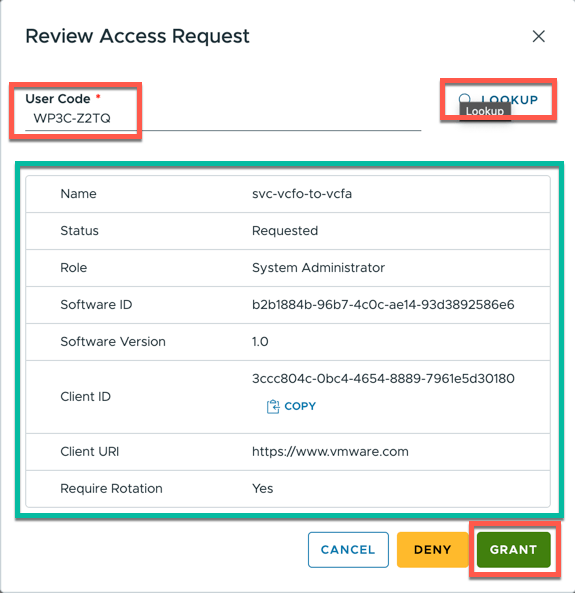
The status of the service account should now be Granted

Now back to some REST APIs
We need to use POST to https://{{vcfa}}/oauth/provider/token with 3 parameters:
client_id : the one from the json
device_code: the one from the json
grant_type : urn:ietf:params:oauth:grant-type:device_code
POST https://{{vcfa}}/oauth/provider/token?client_id=3ccc804c-0bc4-4654-8889-7961e5d30180&device_code=uLof2ARXTa2vFL0rYZeCYCEgElI8CCtZ8dEXxrFMsTI&grant_type=urn:ietf:params:oauth:grant-type:device_code
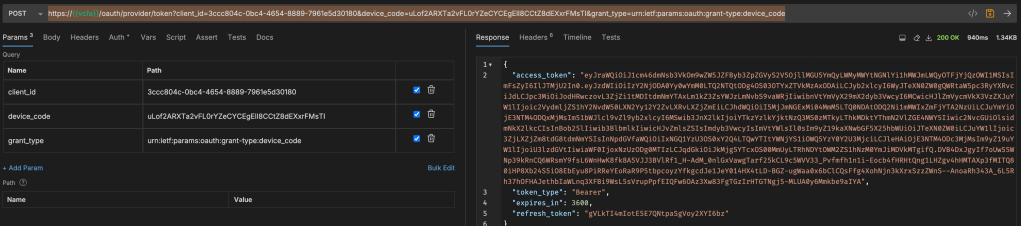
The response should be another JSON
{
"access_token": "eyJraWQiOiJ1cm46dmNsb3VkOm9wZW5JZFByb3ZpZGVyS2V5OjllMGU5YmQyLWMyMWYtNGNlYi1hMWJmLWQyOTFjYjQzOWI1MSIsImFsZyI6IlJTMjU2In0.eyJzdWIiOiIzY2NjODA0Yy0wYmM0LTQ2NTQtODg4OS03OTYxZTVkMzAxODAiLCJyb2xlcyI6WyJTeXN0ZW0gQWRtaW5pc3RyYXRvciJdLCJpc3MiOiJodHRwczovL3ZjZi1tMDItdmNmYTAxLm1kZ3ZsYWJzLmNvbS9vaWRjIiwibnVtYmVyX29mX2dyb3VwcyI6MCwicHJlZmVycmVkX3VzZXJuYW1lIjoic2VydmljZS1hY2NvdW50LXN2Yy12Y2ZvLXRvLXZjZmEiLCJhdWQiOiI5MjJmNGExMi04MmM5LTQ0NDAtODQ2Ni1mMWIxZmFjYTA2NzUiLCJuYmYiOjE3NTM4ODQxMjMsIm51bWJlcl9vZl9yb2xlcyI6MSwib3JnX2lkIjoiYTkzYzlkYjktNzQ3MS0zMTkyLThkMDktYThmN2VlZGE4NWY5Iiwic2NvcGUiOlsidmNkX2lkcCIsInBob25lIiwib3BlbmlkIiwicHJvZmlsZSIsImdyb3VwcyIsImVtYWlsIl0sIm9yZ19kaXNwbGF5X25hbWUiOiJTeXN0ZW0iLCJuYW1lIjoic3ZjLXZjZm8tdG8tdmNmYSIsInNpdGVfaWQiOiIxNGQ1YzU3OS0xY2Q4LTQwYTItYWNjYS1iOWQ5YzY0Y2U3MjciLCJleHAiOjE3NTM4ODc3MjMsIm9yZ19uYW1lIjoiU3lzdGVtIiwiaWF0IjoxNzUzODg0MTIzLCJqdGkiOiJkMjg5YTcxOS00MmUyLTRhNDYtOWM2ZS1hNzM0YmJiMDVkMTgifQ.DVB4DxJgyIf7oUw55WNp39kRnCQ6WRsmY9fsL6WnHwK8fk8A5VJJ3BVlRf1_H-AdM_0nlGxVawgTarf25kCL9c5WVV33_Pvfmfh1n1i-Eocb4fHRHtQng1LHZgv4hHMTAXp3fMITQ80iHP8Xb24S5iO8EbEyu8PiRReYEoRaR9P5tbpcoyzYfkgcdJe1JeY014HX4tLD-BGZ-ugWaa0x6bClCQsFfg4XohNjn3kXrxSzzZWnS--AnoaRh343A_6L5Rh37hOFHAJethbIaWLnq3XFBi9WsL5sVrupPpfEIQFw6OAz3Xw83FgTGzIrHTGTNgj5-MLUA0y6Mmkbe9aIYA",
"token_type": "Bearer",
"expires_in": 3600,
"refresh_token": "gVLkTI4mIotE5E7QNtpaSgVoy2XYI6bz"
}
Your service account should now show Active and the refresh_token from the JSON can be used by your application to do API calls to VCFA.

In our case, our application is VCF Operations. In the next steps, we will switch to VCF Operations and create our credential to be used in the VCF Operations integration with VCFA
Create a VCF Automation for All Apps Organization credential in VCF Operations
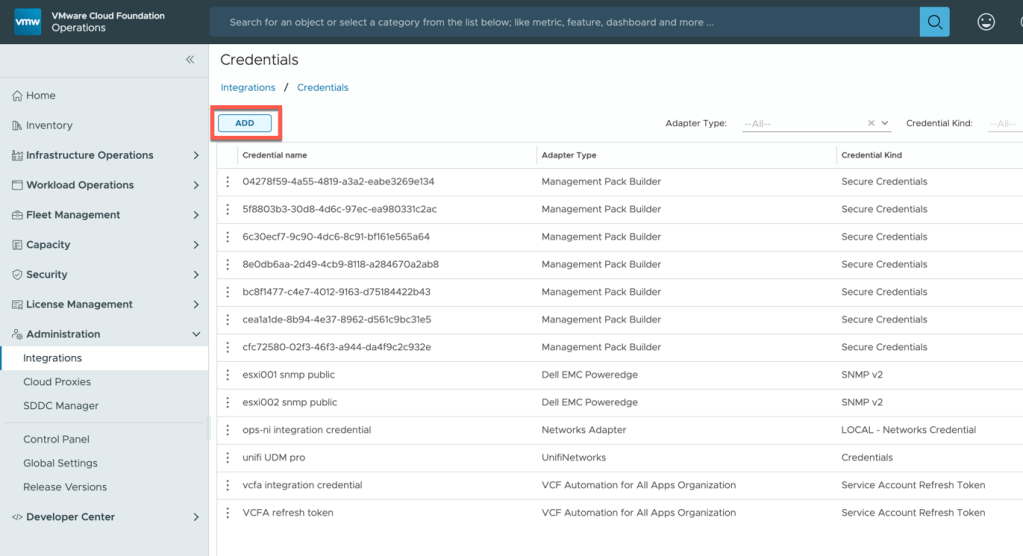
Login to VCF Operations and go to Integrations and click CREDENTIALS
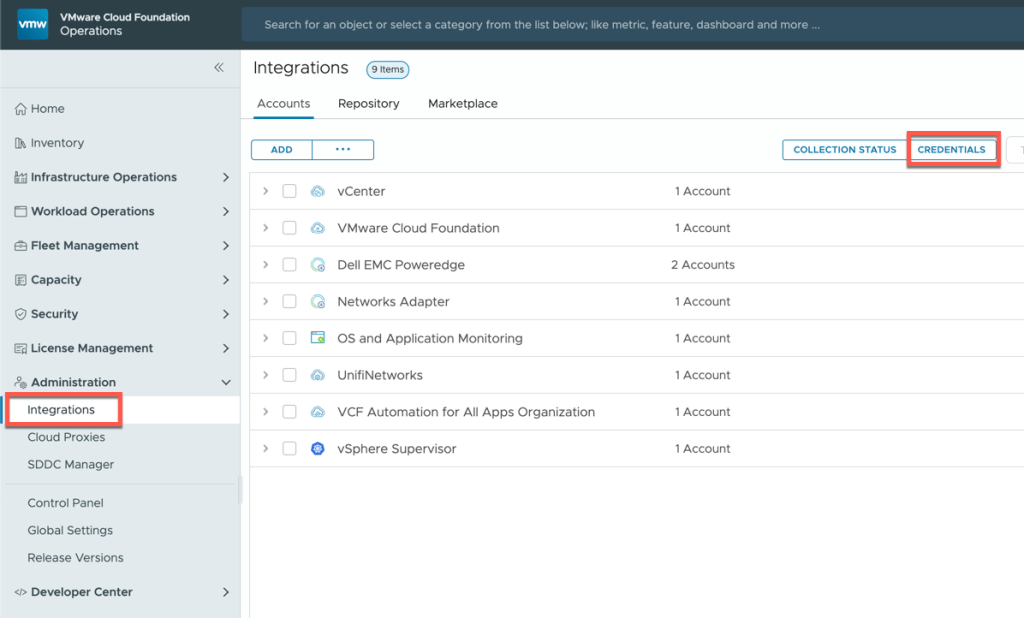
Click on ADD
Create a credential with :
Adapter Type : VCF Automation for All Apps Organization
Credential Kind : Service Account Refresh Token
Credential Name: Name to call this credential
Refresh Token : refresh_token from JSON
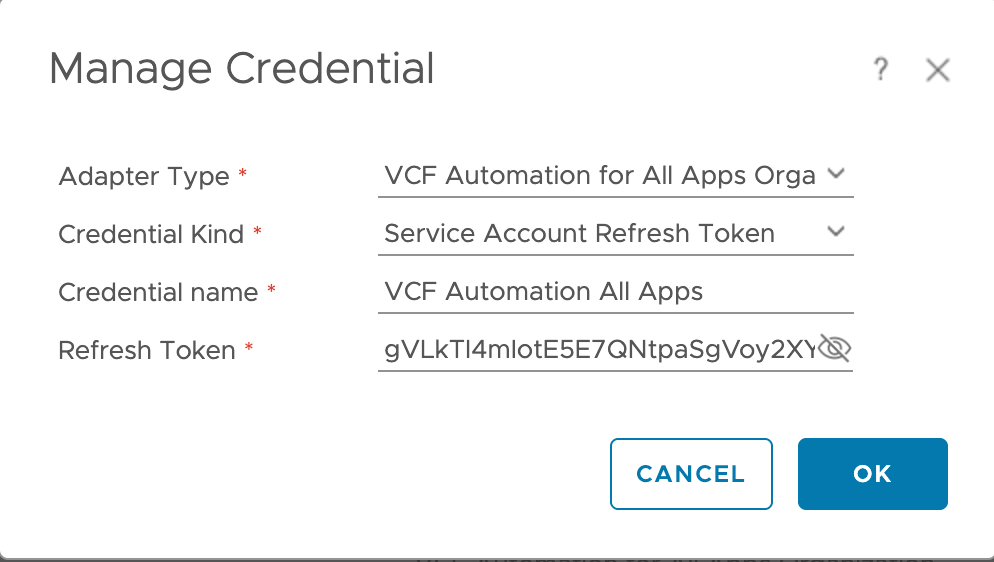
Click OK to create
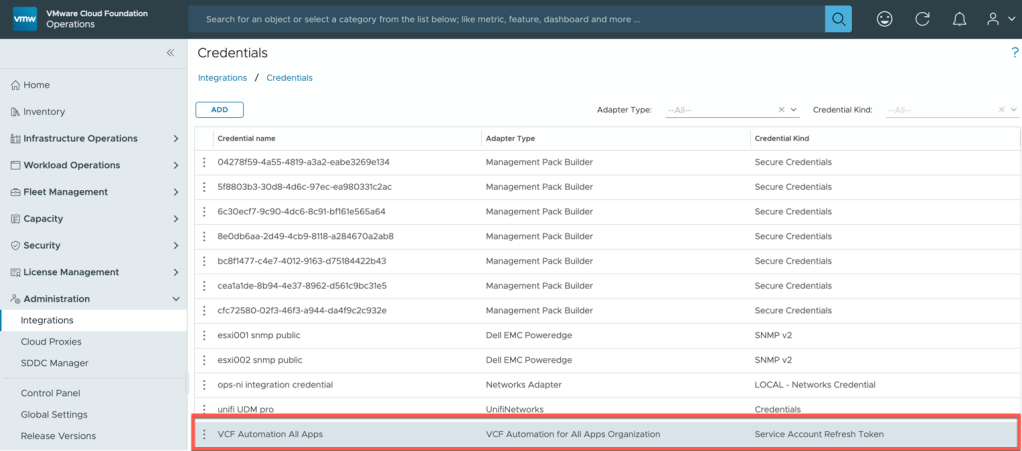
You should now have a credential
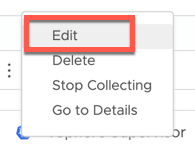
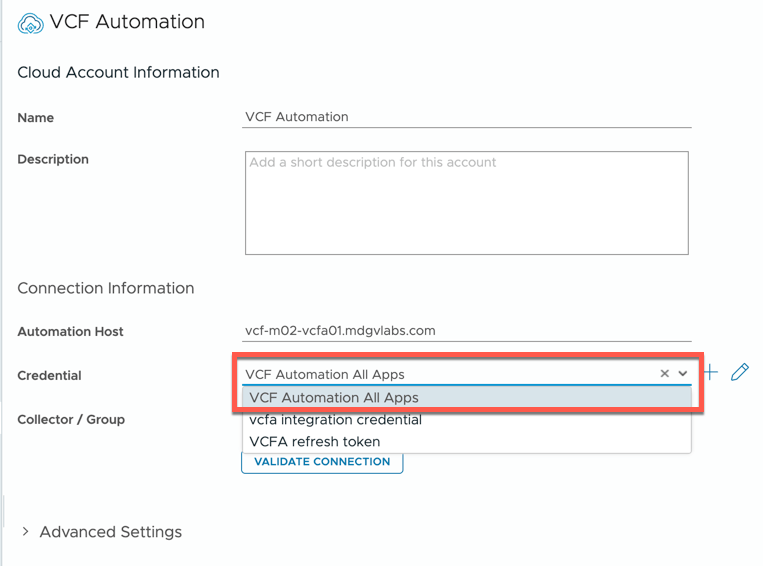
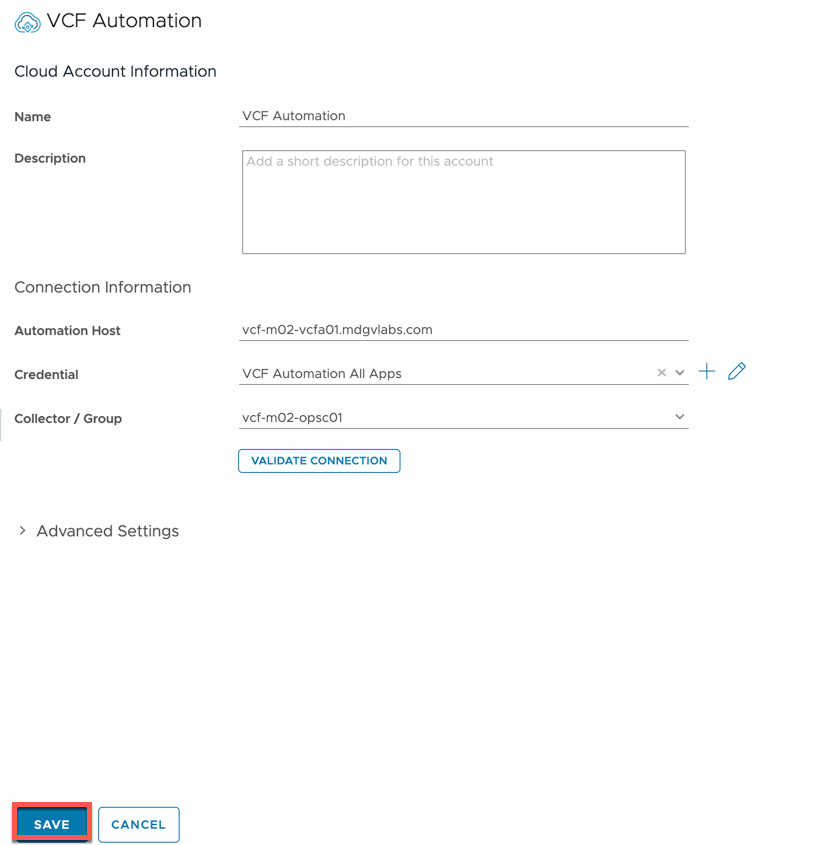
We can now go back to integrations, and select the VCF Automation for All Apps Organization integration and specify the credential to use
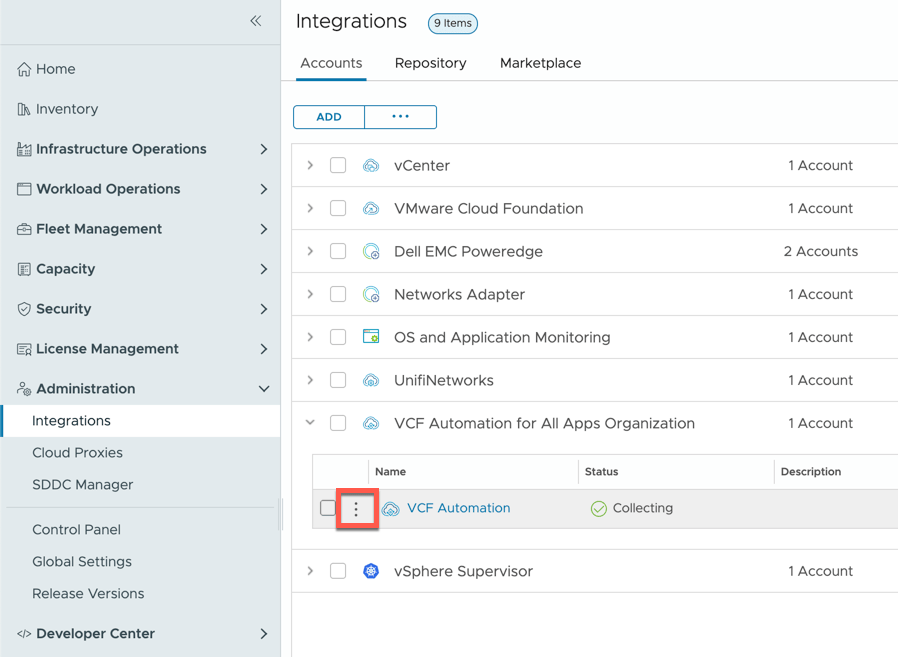
Select your new credential
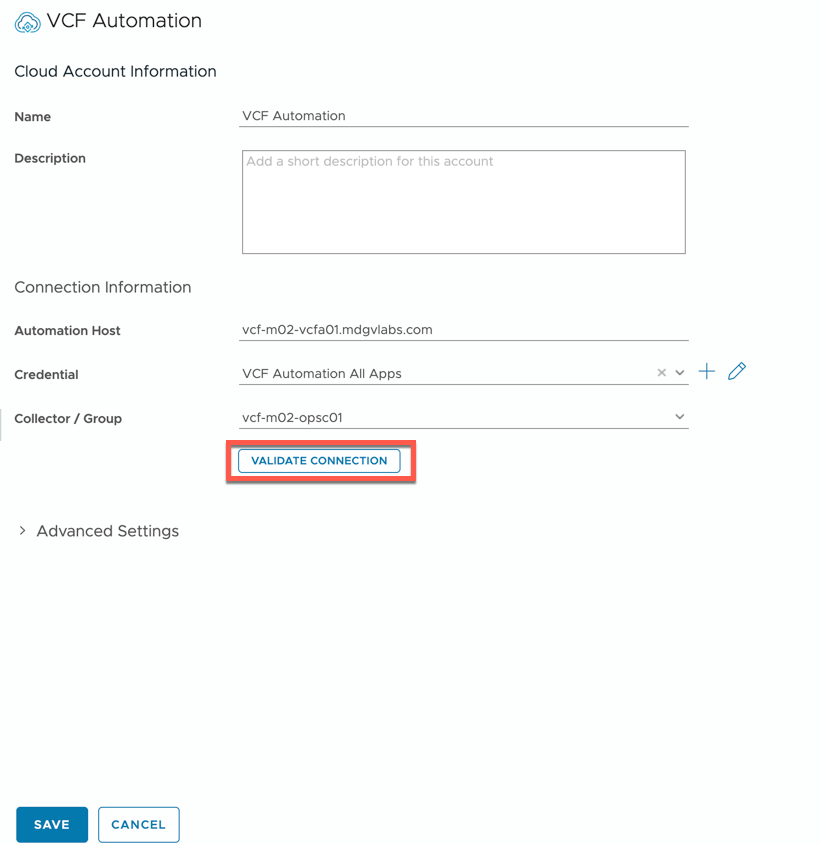
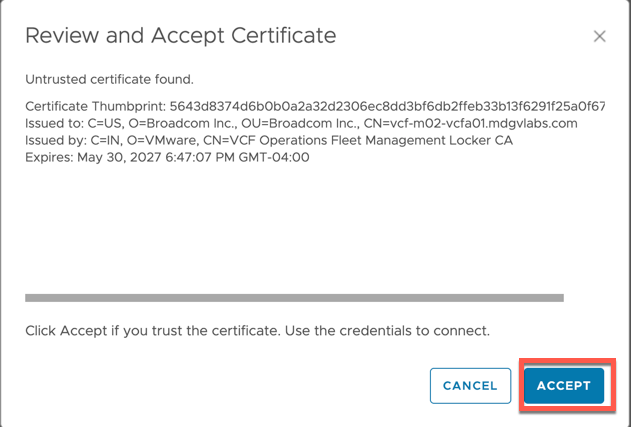
Go ahead and validate the connection and accept the certificate
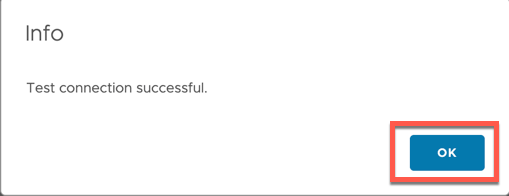
You should be prompted that the connection was successful, click ok
You can then Save the integration and the collection should start


 MDG's Blog
Leave a comment