If you are just starting with Aria Automation, you will soon find out that knowing the APIs is very handy. The challenge for new users, is that there are many ways to access the APIs like using Postman, Python, PowerShell etc.
There is another way, quicker and easier, if you only want to explore the APIs and execute simple operations. This is where the built in Swagger UI comes in to play.
To access it, you simply append /automation/api-docs to the link of your Aria Automation URL
https://yourVRAurl/automation/api-docs
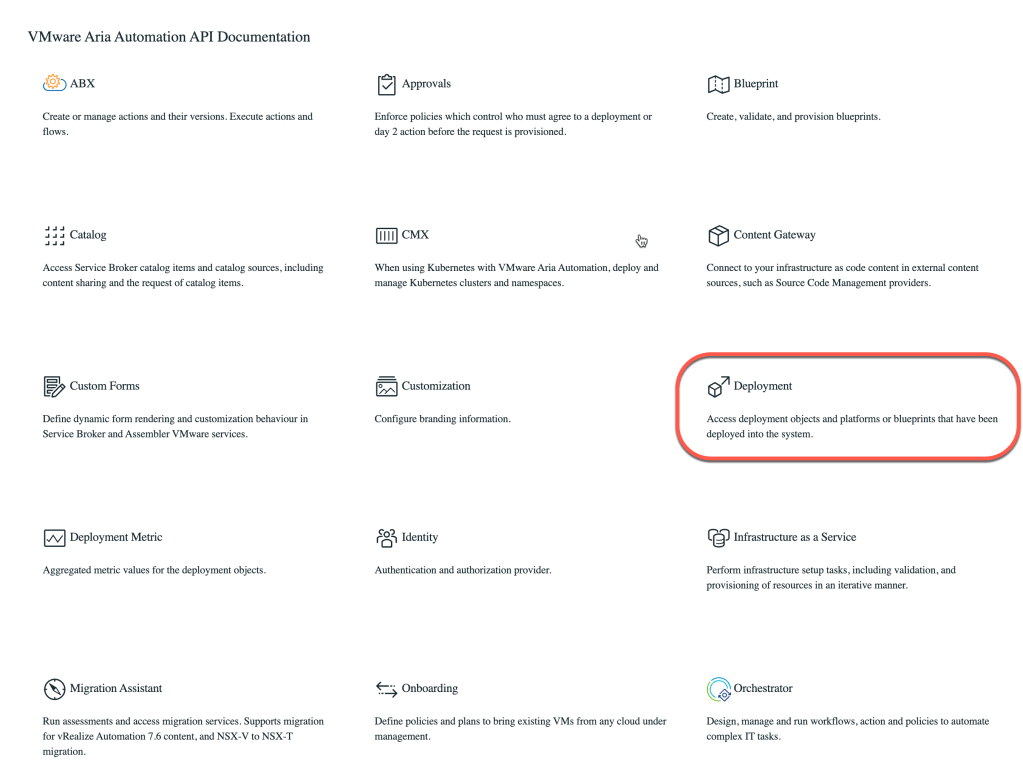
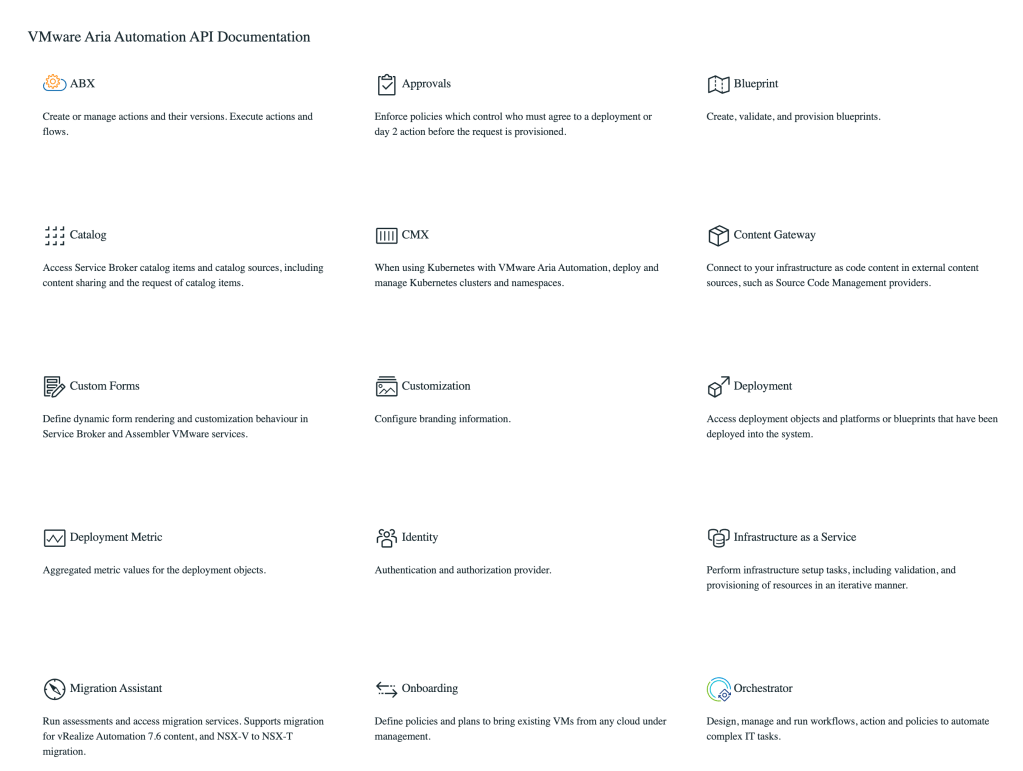
This will allow you to choose the API you wish to work with
In this example, we will choose “Deployment” by clicking on the corresponding API link.
Next you should see the list of APIs for the chosen category, and, an green Authorize button. In order to do requests, we need an access token.
See this KB on how to create an access token : KB 346005
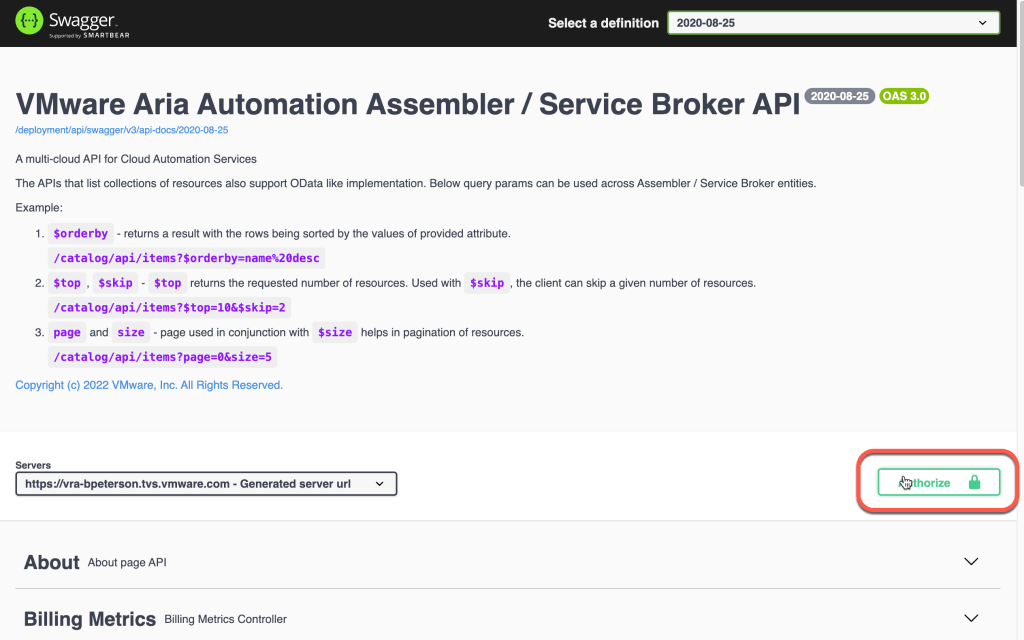
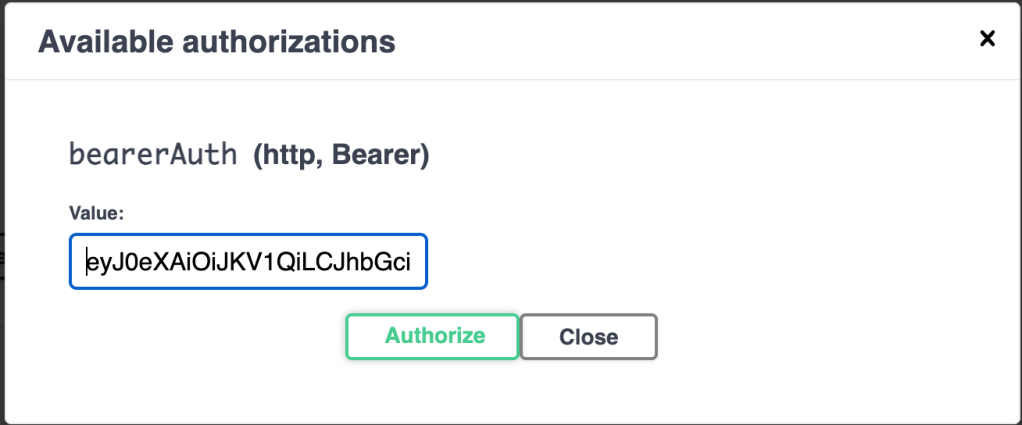
Once you have your access token, click on the green Authorize button
In the Value field, paste your access token, and click the Authorize button.
NOTE: If you are using a version of Aria Automation older than 8.18.x will will need to preface the token with the keyword “Bearer”
Example: Bearer <your token>
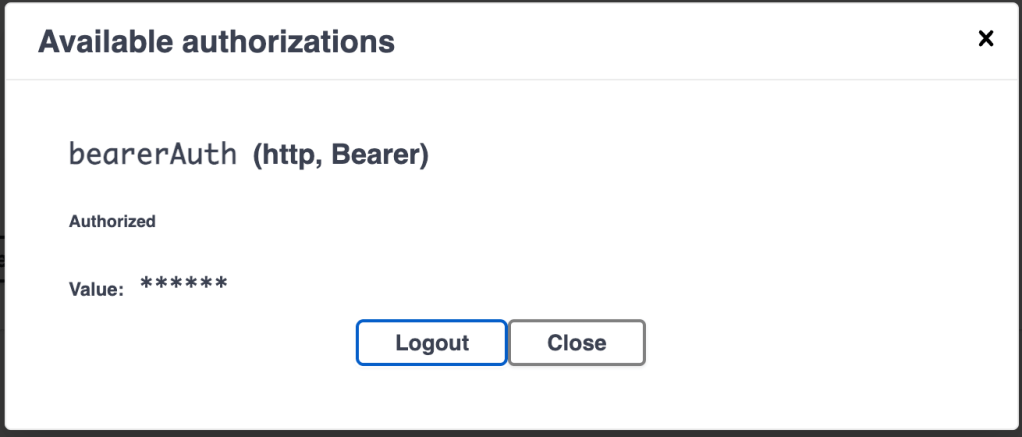
The value will be hidden, and you can click close
Select an API to execute. In this example, lets get the catalog items. Scroll down to Catalog Items and click the down arrow to uncollapse and see the list of requests available.

Select the first GET request (/catalog/api/items), Click Try it out to enable the list of parameters and the execute block.

You can cancel to get out of execute mode (but don’t just now as we want to execute)

Click Execute to execute the request and it should return the list of all catalog items in the Response Body area.

You can go ahead and try other APIs and requests.
Notice that most requests have parameters to filter or organize the results.
Hopefully this helps you get started using the Aria Automation APIs.



 MDG's Blog
Leave a comment